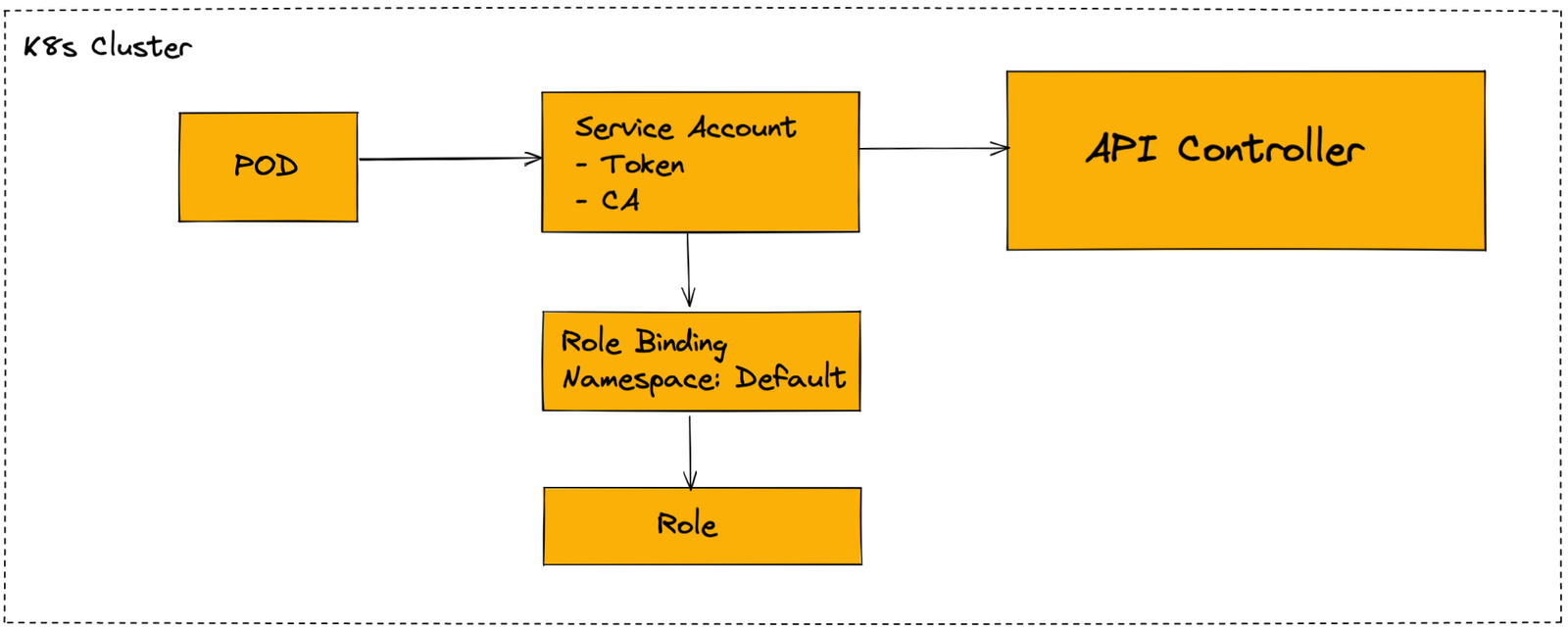
Have you ever wondered that when you access the API Server through kubectl you are authenticated through the API controller, but how will you do the same from the pod side? Here the Service Account role comes into play. As k8s definition itself says “Processes in containers inside pods can also contact the apiserver. When they do, they are authenticated as a particular Service Account (for example, default).”
Things we should know about service Account,
- Created in a namespace.
- Used to allow processes inside pods, access to the API Server.
- Default service account = default (no access to the API server).
- Create your own service account.
- Use it in a RoleBinding or ClusterRoleBinding.
- Use the service account secret to obtain the authentication token & CA certificate.
What we will be covering today,
- Creating a pod (that gets automatically created in default Service Account)
- Will create a Service Account
- Creating a deployment that will be using appsa Service Account.
- RBAC
STEP 1:
Creating a pod without any Service Account. As we are not mentioning any Service Account here, it will pick up a default Service Account.
kubectl run -it --rm alpine --image=alpine -- sh
So, as Service Account provides its own secrets which are mounted on top of the pod by default. The location of those credentials are,
# cd /var/run/secrets/kubernetes.io/serviceaccount
# ls
# ca.crt    namespace  token
Here, we will be using ca.crt & token.
ca.crt – used to make the TLS connection with API Server through curl.
token – jwt token, used to authenticate to the cluster.
Through jwt utility, you can see the contents of the token,
jwt <token>
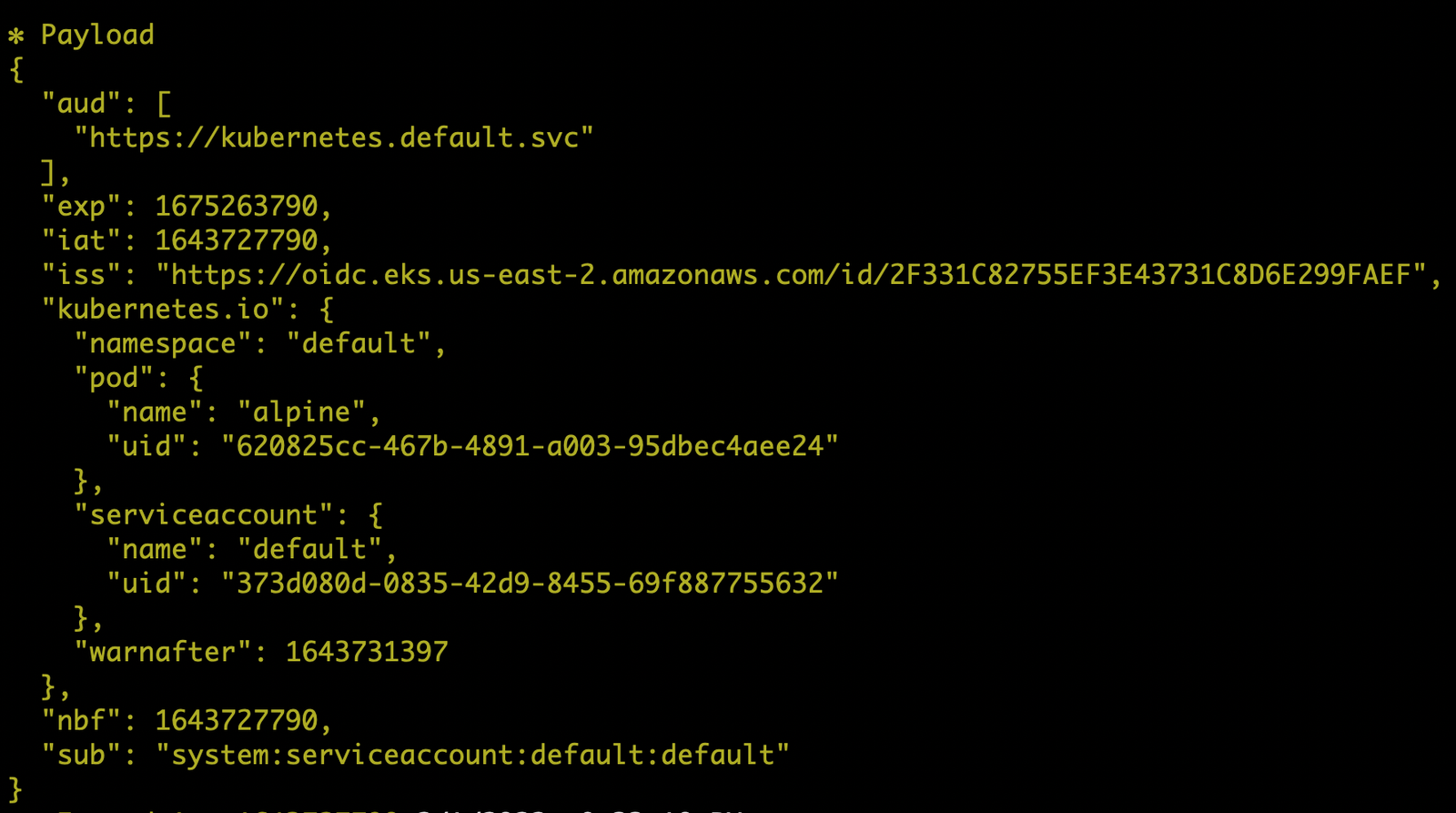
As you can see in the above image that this pod is using the default service account & namespace as well.
STEP 2:
Creating the Service Account but before that, you can check the manifest from the below command.
kubectl create serviceaccount appsa --dry-run=client -o yaml

OUTPUT:
apiVersion: v1
kind: ServiceAccount
metadata:
   creationTimestamp: null
   name: appsa
Finally, create the Service Account
kubectl create serviceaccount appsa
Checking Service Account,
kubectl get sa

OUTPUT:
NAME      SECRETS   AGE
appsa             1                2s
default          1                18d
So whenever we create Service Account, we are also provided with a secret attached to it, to get that
kubectl get secret

OUTPUT:

NAME                                   TYPE                                                                      DATA     AGE
appsa-token-fzmbd     kubernetes.io/service-account-token       3           105s default-token-st8t8   kubernetes.io/service-account-token         3           18d
To get the token, you can use the below command.
kubectl get secret appsa-token-fzmbd -o yaml
OUTPUT:
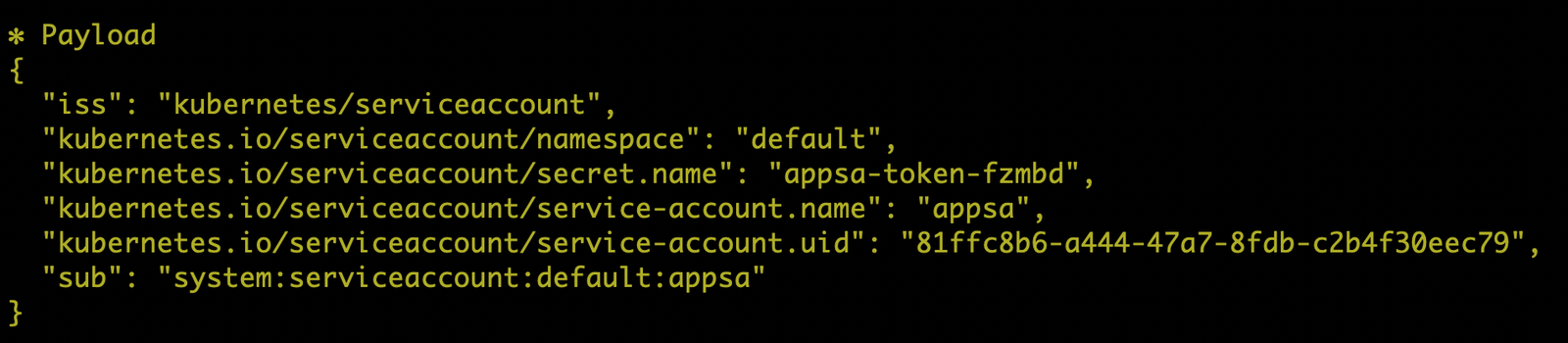
NOTE: Above image has very critical information so kindly do not share it with anyone else.
Also, you can see that we got the ca.crt, namespace & token. As we all know that in k8s tokens are base64 encoded, so to decode that we will be using the below command,
echo <token> | base64 -d

# -d = decode
Now you can use the decoded token to get the information by using jwt, as we did earlier also.
jwt <decoded token>
STEP 3:
Here, we will be creating a deployment.yaml
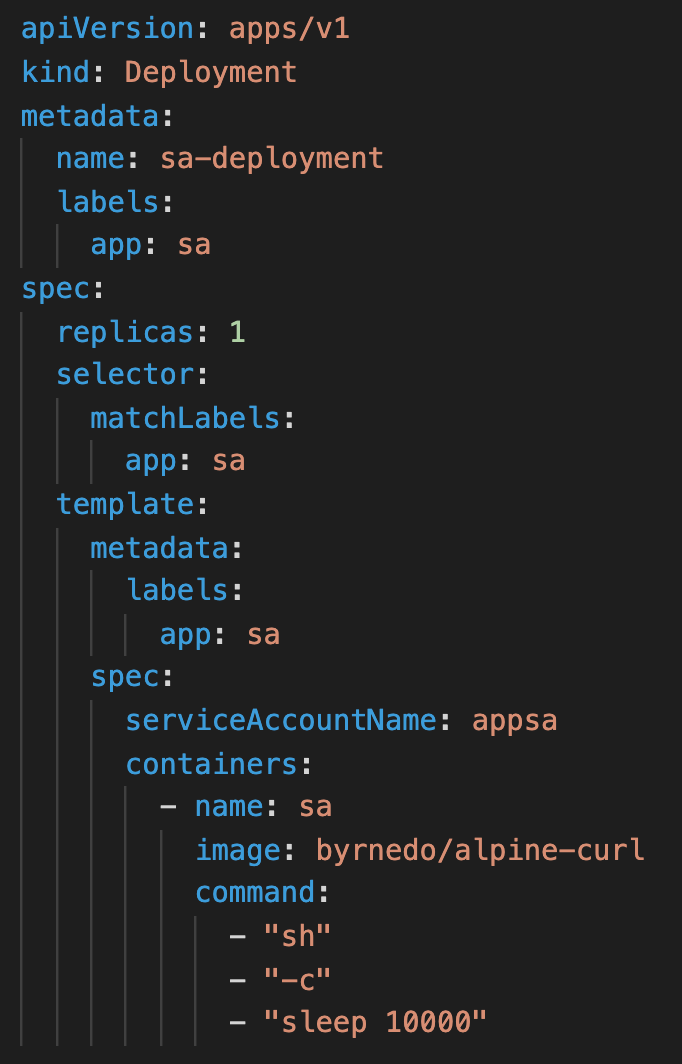
applying it,
kubectl apply -f deployment.yaml
Checking,
kubectl get deploy

OUTPUT:

NAME                        READY      UP-TO-DATE      AVAILABLE     AGE
sa-deployment         1/1                      1                                1                  15s
Now describe the pod which is created from this deployment.
kubectl describe pod <pod name>

OUTPUT:

Mounts:
            /var/run/secrets/kubernetes.io/serviceaccount from appsa-token-fzmbd (ro)
As you can see, this pod is automatically mounted with the token of Service Account appsa.
Now, login into the deployment pod through,
kubectl exec -it <pod name> sh
Create a variable for certificate & Token
CA=/run/secrets/kubernetes.io/serviceaccount/ca.crt

TOKEN=$(cat /run/secrets/kubernetes.io/serviceaccount/token)
Now we will hit the k8s api server with the below GET request,
curl --cacert $CA -X GET https://kubernetes/api --header "Authorization: Bearer $TOKEN"

OUTPUT:

{
  "kind": "APIVersions",
  "versions": [
    "v1"
  ],
  "serverAddressByClientCIDRs": [
    {
      "clientCIDR": "0.0.0.0/0",
      "serverAddress": "ip-10-0-48-60.us-east-2.compute.internal:443"
    }
  ]
}
NOTE: It is recommended to use both CA & Token, but if you don’t want to use ca.crt then you can use the option –insecure in the curl command.
Although we can successfully authenticate to the API server, we still don’t have any kind of access over the cluster. As we all know, access to k8s resources can be provided through RBAC.
STEP 4:
We will be creating a role.yaml for the service account. Access is granted only to list out the pods.
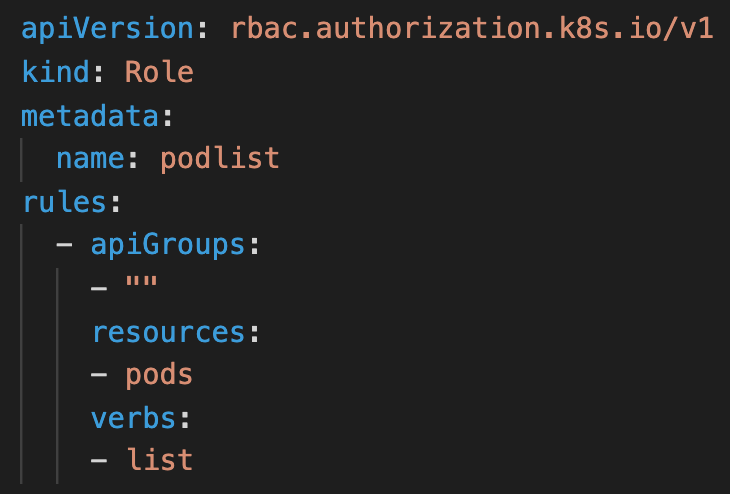
Apply,
kubectl apply -f role.yaml
Now we will create a rolebinding.yaml,
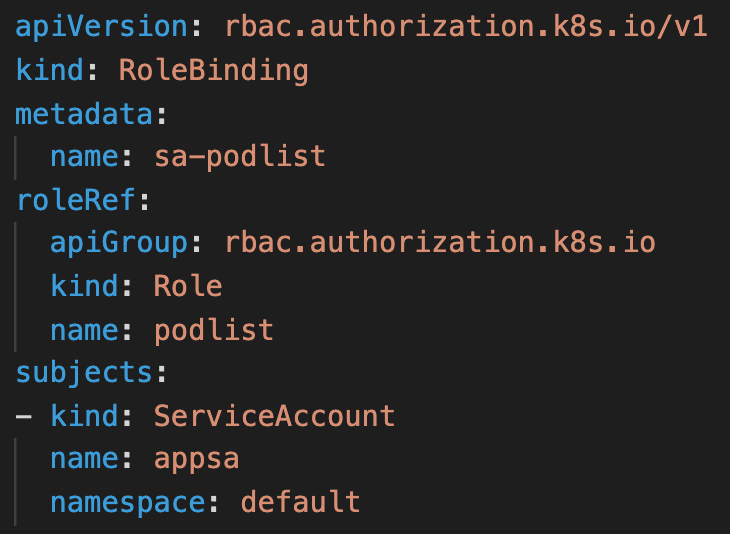
Apply,
kubectl apply -f rolebinding.yaml
Now move into the deployment pod & hit the below curl,
curl --cacert $CA -X GET https://kubernetes/api/v1/namespaces/default/pods --header "Authorization: Bearer $TOKEN" | head -n 10
OUTPUT:
  % Total    % Received % Xferd  Average Speed   Time    Time     Time  Current
                                 Dload  Upload   Total   Spent    Left  Speed
  0     0    0     0    0     0      0      0 --:--:-- --:--:-- --:--:--     0{
  "kind": "PodList",
  "apiVersion": "v1",
  "metadata": {
    "resourceVersion": "3561361"
  },
  "items": [
    {
      "metadata": {
        "name": "sa-deployment-569fd7c496-vh7h2",
        "generateName": "sa-deployment-569fd7c496-",
        "namespace": "default",
        "uid": "94cf84e3-02f8-4191-87a5-48fe93404560",
        "resourceVersion": "3539771",
        "creationTimestamp": "2022-02-01T09:11:21Z",
        "labels": {
          "app": "sa",
          "pod-template-hash": "569fd7c496"
        },
        "annotations": {
100  7057    0  7057    0     0   287k      0 --:--:-- --:--:-- --:--:--  287k
Voila!
Conclusion
Service Account comes into the picture mostly when you are running a third-party application into your cluster and that app needs to access other applications running in different namespaces.
I hope you guys have enjoyed the blog, feel free to submit any feedback or suggestions, I’ll be happy to work on it.
Happy Learning 😊
Blog Pundit: Bhupender Rawat, Adeel Ahmad and Sandeep Rawat
Opstree is an End to End DevOps solution provider
Connect Us