Chef-Cookbooks Roast it perfectly..


Introduction

This is our first major step towards our learnings. We are now quite sound with the ABC’s of chef. Now we announce the most compelling facet of chef. Cookbooks are the most crucial segment of the chef’s kingdom. Nothing worth having comes easy, so kickoff with more efforts.
“A Real Test Of a Good Chef Is, Perfectly Roasted Chicken.”
Julia Child
Wait wait wait !! fire your all cylinders but remember to breath.

Prerequisites

This article assumes that you are aware with the basics of Git and Vagrant. You know the basic functioning of chef and its recipes and resources. This article is written with centos7 platform. To know about chef follow our previous blogs of this series Chef Start here with ease.. .

Get started

Clone our git repo and fire up a vagrant box with this.

$ git clone https://github.com/OpsTree/Chef.git

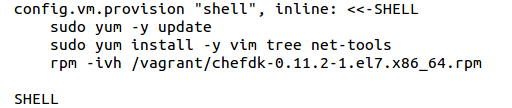
  • Go to Chef/centos/chefCookbooks directory. This directory contains a Vagrantfile, which can launch a centos7 vagrant machine with Chefdk and other essential tools installed.

$ cat Vagrantfile

  • Download Chefdk using below available command
$ cd Chef/centos/chefCookbooks

$ wget https://opscode-omnibus-packages.s3.amazonaws.com/el/7/x86_64/chefdk-0.11.2-1.el7.x86_64.rpm

  • This directory also includes a knife.rb file which sets the cookbook folder path and default editor for the virtual machine.
  • Launch a new vagrant machine and login into it.

$ vagrant up

$ vagrant ssh

Your working environment is ready. Let’s start with chef cookbooks.

Create your first cookbook

First create a dedicated directory for our cookbooks. As in knife.rb file it will be created by following command.
$ mkdir /vagrant/cookbooks
Chef manage its cookbooks using a version control system so next we initialize and also make our first commit for /vagrant/cookbooks directory. Provide your name and email for git configuration.
$ mkdir /vagrant/cookbooks
$ cd /vagrant/cookbooks
$ git init
$ git add .
$ git config –global user.email “you@example.com
$ git config –global user.name “Your Name”
$ git commit -m “Initial Commit”
Now you are ready to start with the creation of your first cookbook.

Call up with knife

We are using knife to generate are cookbooks. Generate your cookbook for installing nginx and to set a virtual hosts opstree.com/blog/ and chef.opstree.com with this.
Generate our first cookbook using below written command. This command setup copyright, email, license, and readme format options for your cookbook.
$ knife cookbook create nginxVhost -C “Saurabh Vajpayee” -m “myemail@email.com” -I nginxv1 -r md

Let’s create a recipe

Create the default recipe with below provided command and put below available content.

$ vim /vagrant/cookbooks/nginxVhost/recipes/default.rb

package ‘epel-release’ do
action :install

end

package ‘nginx’ do
action :install

end

directory “#{node[‘nginx’][‘webroot’]}” do
 recursive true

end

template “/etc/nginx/conf.d/#{node[‘nginx’][‘conffile’]}” do
 source ‘chefmanagedconf.conf.erb’
 variables(
   :port => “#{node[‘nginx’][‘port’]}”,
   :servername => “#{node[‘nginx’][‘servername’]}”,
   :webroot => “#{node[‘nginx’][‘webroot’]}”
 )

end

template “#{node[‘nginx’][‘webroot’]}/index.html” do
 source ‘index.html.erb’
 variables(
   :servername => “#{node[‘nginx’][‘servername’]}”
 )

end

line = “127.0.0.1 #{node[‘nginx’][‘servername’]}”
file = Chef::Util::FileEdit.new(‘/etc/hosts’)
file.insert_line_if_no_match(/#{line}/, line)
file.write_file
service ‘iptables’ do
 action :stop

end

service ‘nginx’ do
action :restart

end

This file includes multiple chef resources and some variable like ‘webroot’, conffile, port and servername. These variables have their default values under attribute directory and used in the templates which are next to create.

Create attribute file

This file contains the default value of your variables used in recipes. Create a default.rb file and place these values.
$ chef generate attribute /vagrant/cookbooks/nginxVhost/ default
$ vim /vagrant/cookbooks/nginxVhost/attributes/default.rb
default[‘nginx’][‘port’] = “80”
default[‘nginx’][‘webroot’] = “/usr/share/nginx/blog”
default[‘nginx’][‘servername’] = “opstree.com/blog/”
default[‘nginx’][‘conffile’] = “opstree.com/blog/.conf”

Create templates

Create template file to provide dynamic touch to your files. First create template for “configuration” files, and put below provided content.$ chef generate template /vagrant/cookbooks/nginxVhost/ chefmanagedconf.conf

$ vim /vagrant/cookbooks/nginxVhost/templates/default/chefmanagedconf.conf.erb

server
{
   listen       <%= @port  %>;
   server_name  ;
   location / {
       root   ;
       index  index.html index.htm;
   }
   error_page  404              /404.html;
   location = /404.html {
       root   ;
   }
   # redirect server error pages to the static page /50x.html
   error_page   500 502 503 504  /50x.html;
   location = /50x.html {
       root   ;
        }
  }

And next place template for index.html file with following content.

$ chef generate template /vagrant/cookbooks/nginxVhost/ index.html

$ vim /vagrant/cookbooks/nginxVhost/templates/default/index.html.erb

<!DOCTYPE html PUBLIC “-//W3C//DTD XHTML 1.1//EN” “http://www.w3.org/TR/xhtml11/DTD/xhtml11.dtd”>

<html xmlns=”http://www.w3.org/1999/xhtml” xml:lang=”en”>
<head>
<title>Test Page for the Opstree Server </title>
</head>

<body>
<h1>Welcome to <strong> <%= @servername %> </strong></h1>
</body>
</html>

Your cookbook is ready for initial workings. Let’s run it.

Run and feel like a million bucks

Run your cookbook with below command, and relax for a while.
$ sudo chef-client –local-mode  –runlist ‘recipe[nginxVhost]’
By default this cookbook setup opstree.com/blog/ vhost if you want to setup another vhost chef.opstree.com then overiride default values of variables. To do this create a json file which declares the new values for variables.
$ vim /vagrant/runlist.json
{
“nginxVhost”: {
“webroot” : “/usr/share/nginx/chef”,
“servername” : “chef.opstree.com”,
“conffile”: “chef.opstree.com.conf”
},
“run_list”: [
“recipe[nginxVhost]”
]
}
And run chef-client once again with following commands.
$ sudo chef-client –local-mode  -j /vagrant/runlist.json
Now you  have power to create as many vhost automatically with chef.

Verify the vhost

$ curl opstree.com/blog/
$ curl chef.opstree.com
From now we have to work hard to match the expectation of the industry. You are now developing into a chef proficient. Do some experiments and play hard.

Chef-Recipes Bake it calmly..

(source: google.com)
 

Introduction

This is very crucial state of your learnings with chef. It’s not easy to deposit that much of attention continuously so be calm and reassemble all your amplitude for the next bout. Straightway we are going to clash with chef-recipes. We will try to maintain the balance so we didn’t feel overfed.
“Never Eat More Then You Can Lift. Miss Piggy”
(source: google.com)

Prerequisites

This article is written in consideration with centos as platform. We assume that you have basic understanding of Vagrant, Git and Chef-Resources. To know about chef resources follow our previous blogs of this series Chef Start here with ease.. .

Get started

Clone our git repository to create your learning vagrant environment.
 
$ git clone https://github.com/OpsTree/Chef.git
 
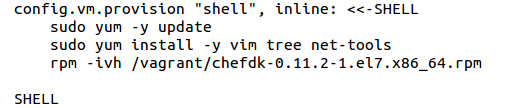
  • Change your current directory to Chef/centos/chefRecipes. A vagrant file is present here with some bash provisioning to provide you a complete chef learning environment.
$ cat Vagrantfile
Trigger a vm using following commands.
 
$ vagrant up
 
$ vagrant ssh
This will spin up and login into a centos7 vagrant machine with chef installed in it.

Recipe

A recipe is the first significant element of a cookbook to manage any environment. A recipe club together multiple resources (built-in and custom )and some ruby code. The recipes are ruby files with “.rb” extension. These are generally part of a cookbook. A recipe may be dependent over any other recipe. The recipe ensure the legitimate use of templates and files.
 
Recipes also contains attributes for different resources. These attributes help chef to maintain the desired state of any machine under chef’s attention.

Shape your first set of recipes

Let’s start with our first recipe. We deal with our common problem statement for all articles. We are installing nginx web server and then create two vhost chef.opstree.com and opstree.com/blog/ using a set of recipes. With this you can gently start feeling the power of chef and automation.
 
  • Create a nginxInstall.rb file

 
Create nginxInstall.rb using below command and put the following content in that file.
$ vim nginxInstall.rb
 
package ‘epel-release’ do
action :install
end
 
package ‘nginx’ do
action :install
end
 
service ‘nginx’ do
action [ :enable, :start ]
end
 
This will install nginx on your machine with default configuration, and also start it.
  • Create nginxVhost.rb file

Create a nginxvhost.rb file to configure your vhost. Paste the following content in it.
 
$ vim nginxVhost.rb
directory ‘/usr/share/nginx/blog’ do
   recursive true
end
directory ‘/usr/share/nginx/chef’ do
  recursive true
end

file  ‘/usr/share/nginx/blog/index.html’ do content ‘Chef Session

Hello this is Blog from Opstree !!’

end

file  ‘/usr/share/nginx/chef/index.html’ do

 content ‘Chef Session Hello this is Chef Opstree !!’

end

file ‘/etc/nginx/conf.d/opstree.com/blog/.conf’ do content IO.read(‘/vagrant/recipes/opstree.com/blog/.conf’)
end

file ‘/etc/nginx/conf.d/chef.opstree.com.conf’ do

 content IO.read(‘/vagrant/recipes/chef.opstree.com.conf’)

end

service ‘nginx’ do

 action [:stop, :start]

end


Download the content of files opstree.com/blog/.conf and chef.opstree.com.conf .
 
This recipe configure the two desired vhost chef.opstree.com and opstree.com/blog/ for you. This recipe includes directory, file and service resources. It also includes IO.read ruby function to read files.
 
Directory resource creates complete data directory structure for chef and blog vhost. File resource maintain content for index.html and .conf files of chef.opstree.com and opstree.com/blog/.
  • Make entry in /etc/hosts

 
This is also possible with chef but for for now we are doing it manually.
$ sudo vim /etc/hosts
 
127.0.0.1 opstree.com/blog/
127.0.0.1 chef.opstree.com
  • Get set go

 
Now run your recipes one by one and sense the fascination with chef.
 
$ sudo chef-apply nginxInstall.rb
 
$ sudo chef-apply nginxVhost.rb
 
Now all is set, your virtual host are ready to visit.
 
$ curl chef.opstree.com
 
$ curl opstree.com/blog/
Recipes are your first step towards chef expertise. Start behaving like flier, clench the nut bolts and start practising with chef-recipes. Took some basic problems and resolve them with recipes. More you dig into the sea more you get.
 
“The Great Recipes For Success Is To Work And Always Work. Leon Gambetta”
 
You are now going to be addict of chef and automation, be aware of your demands .
“Dear stomach you’re bored not hungry, So shut up !!”
(source: google.com)

Chef-Resources Elementary ingredient..


Introduction

Resources are the “elementary ingredient” of Chef house. Before mounting up on the spikes of chef’s elevations, it’s favorable to tailor your suit with basics. Combining common ingredients to make a new play substance is always thrilling!. I wish I had some magic secrets or shortcuts to share, but the truth is that you have to start with the ABC’s and then you can rule over the game.


Trigger a VM

Git clone our repository dedicated for this blog series.


$ git clone git@github.com:OpsTree/Chef.git


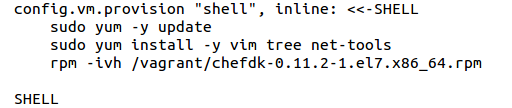
Change directory to Chef/centos/chefResourceBackings. Here you find a Vagrantfile which spin up a centos7 machine with chefdk and other tools installed in it.

$ cat Vagrantfile

Launch a new vagrant machine and login.

$ vagrant up

$ vagrant ssh
Your learning environment is ready. Although in this blog we do not focus a lot on practicals, we try to clear our theoretical concepts.


Backings of Resources

Chef resources are the statements which define the configuration approach for any element. From the officials of chef, resources are


  • Describes the desired state for a configuration item
  • Declares the steps needed to bring that item to the desired state
  • Specifies a resource type—such as package, template, or service
  • Lists additional details (also known as resource properties), as necessary
  • Are grouped into recipes, which describe working configurations


Chef works with two basic parts, properties and actions.

Properties

Properties are the attributes and definitions for the target element of any resources. Some common properties for all resources without exception.

ignore_failure

What to do when a resource is fail in its doings i.e. continue or stop. Default value is false or stop.

provider

This is an optional property. You can explicitly define the correct provider for a resource. In common practices this is not mandatory to specified.

retries

Number of attempts that a resource tries in chef-run. Default value is 0.

retry_delay

Time duration between two consecutive tries. Default value is 2.

sensitive

This defines that the data in resource is sensitive and is not logged by chef-client. Default value is false. This property only applies to the execute, file and template resources.


Action

Actions differ for distinct resources. A common action for every resource is :nothing. Nothing action stated that resource should not do anything until it is notified by any other resource.

Some Basic Resources

Lets took example of some of the basic resources.
  • Package
This resource manage packages. This install, uninstall and upgrade any package. This resource is also a platform for some other dependent package management resources such as apt_package, dpkg_package, gem_package, yum_package etc. Available actions are :install, :purge, :remove, :upgrade and :nothing.
Example:


package ‘tar’ do
 version ‘1.26-29.el7’
 action :install
end
OR
package ‘tar’ do
 action :remove
end
  • File
This is responsible to manage files on a machine. Available actions are :create, :create_if_missing, :delete, :nothing and :touch.


Example


file ‘/tmp/test.txt’ do
 content ‘This is testing file.’
 mode ‘0755’
 owner ‘root’
 group ‘root’
end
OR


file ‘/tmp/test2.txt’ do
 content IO.read(‘/vagrant/resources/string.txt’)
 action :create
end
This will create a test.txt file under /tmp directory and put the contents of string.txt file into it.


  • Service


Subjected to manage services. Available actions are :disable, :enable, :nothing, :reload, :restart, :start and :stop.

Example

service ‘nginx’  do
 action :start
end


OR

service ‘nginx’ do
 supports :status => true, :restart => true, :reload => true
 action [ :enable, :start ]
end
This will ensure enable then start options for nginx service. Before this, install nginx using package resource.
  • Template

This resource calls chef templates to dynamically generate static files. Templates are “.erb” files with some variables and placed under “/templates” directory of cookbook. Available actions are  :create, :create_if_missing, :delete, :nothing and :touch.  Template resource only available with cookbooks, you can not use this resource with chef-apply from command line.

Example

template ‘/tmp/sshd_config’ do
 source ‘sshd_config.erb’
 owner ‘root’
 group ‘root’
 mode ‘0755’
end
OR


template ‘/tmp/config.conf’ do
 source ‘config.conf.erb’
 variables(
   :config_var => ‘mytext’
 )
end
This will pass variables to config.conf.erb file to generate config.conf file.

Extended Resource

Have some attention towards less likely used but important resources.
  • Git

This resource manages git repository by interacting with source code management system. Git version 1.6.5 (or higher) is required. Available actions are :checkout, :export, :nothing and :sync.


Example

git ‘/opt/mygit/’ do
 repository ‘https://github.com/OpsTree/Chef.git’
 revision ‘master’
 action :sync
end
  • Link

Resource is responsible to manage soft and hard links. Available actions are :create, :delete and :nothing.

Example

link ‘/tmp/myfile’ do
 to ‘/etc/ssh/sshd_config’
end
OR


link ‘/tmp/myhardfile’ do
 to ‘/etc/ssh/sshd_config’
 link_type :hard
end
The default link_type is :symbolic.


  • Script

This resources is used to execute external script. The supported interpreters are Bash, csh, Perl, Python, or Ruby. Available actions are :run and :nothing.


Example

script ‘extract_module’ do
 interpreter ‘bash’
 cwd ‘/tmp’
 code <<-EOH
   mkdir -p /tmp/mytest
   touch /tmp/mytest/file.txt
   EOH
end
  • Cron


To manage your cron jobs use this resource. If a property is not specified then default ‘*’ value is taken. Available actions are :create, :delete and :nothing.


Example
cron ‘noop’ do
 hour ‘5’
 minute ‘0’
 command ‘/bin/true’
end


OR


cron ‘tuesdaycron’ do
 minute ’50’
 hour ’11’
 weekday ‘2’
 command ‘/bin/true’
 action :create
end
This will run the cron job only on tuesday 11:50am.


To test all resources available above, go to resource directory under “chefResourceBackings” directory.  All resources are available as bash script.

Custom Resources

It’s an extension of the initially available properties.  Chef allows you to create your own resources. These custom resources extend the basic definitions of the built-in resources. The custom resources resides in the “/resources” directory of any cookbook. Conventionally name of any custom resource is the name of cookbook and name of resource file separated by underscore (_).  Custom resource creation is not an initial task for us so we skip this for now.


This is difficult to cover all about the resource(every resource and their properties or actions) in this article. Refer to chef-resources for more information.


It’s hard to get this boring stuff exciting in any manner. But it’s a fact that every serious effort makes you closer towards the excellence.


“The Expert In Anything Was Once A Beginner. “
Wanna be an adroit of Chef then from now “practice like a devil play like an angel”.

Chef-Resources Easy as pie..


Introduction

Resources are the basal element of chef’s heap. In all the functioning of chef, resources are in crux. These are a very first statement of any chef recipe or cookbook. In this blog we only intensify on the practical approach of  working with resources. This article will help you to compose a primitive awareness towards the execution of chef.
 
“Pie Makes Everybody Happy!! L. H. Anderson”

Prerequisites

To follow this article you need a prior information about Git and Vagrant. This blog uses centos7   as platform.

Getting Started

Sooner, probably but it necessitous to talk about chef installation. For this and some of next blogs we use chef-standalone mode. Chef-standalone mode provides a basic learning environment for beginners. Chef-standalone mode allow you to configure a machine directly.
Chef cater a complete  package labeled as Chefdk (Chef Development Kit ). It encloses all the essential thing you need to start with chef.
 

Install Chefdk

Clone our git repo and spin up a vagrant box with it.
 
$ git clone git@github.com:OpsTree/Chef.git
 
  • Go to chefResources directory. This directory contains a Vagrantfile, which can launch a centos7 vagrant machine with Chefdk and other essential tools installed.
$ cat Vagrantfile
 
  • Launch a new vagrant machine and login into it.
$ vagrant up
 
$ vagrant ssh
 
Your learning environment is ready. Let’s start with chef resources.

Resource

Lets took our first resource package. As in our blog series we go through a common problem statement of installing nginx and then setup nginx vhost. This time we are going to do this with chef resources only. Chef resource have basic two parts properties and action. We will discuss both of these in our next article. Till then we start playing with  chef resources.
 
  • Package resource
Package resource is used to manage packages. This is the base resource for other package management resources for different platforms.
 
    • Add nginx repo by installing epel-release.
$ sudo chef-apply -l info -e “package ‘epel-release'”
 
    • Install nginx using package resource
$ sudo chef-apply -l info -e “package ‘nginx'”
 
  • Directory resource
Directory resource is responsible to maintain the directory lane in target node.This resource have multiple attributes to classify the permissions, owner and group.
 
    • Create home directory for vhosts.
$ sudo chef-apply -l info -e “directory ‘/usr/share/nginx/blog'”
$ sudo chef-apply -l info -e “directory ‘/usr/share/nginx/chef'”
 
This will create two directories blog and chef under ‘/usr/share/nginx directory’.

  • File resource
This resource is answerable for the file management on the node. This resource holds mode, content, owner, group and path attributes with their respective meaning for a file.
 
    • Create index files for nginx vhosts.
$ sudo chef-apply -l info -e “file ‘/usr/share/nginx/blog/index.html’ do content ‘Hello from blog server’ end”
 
$ sudo chef-apply -l info -e “file ‘/usr/share/nginx/chef/index.html’ do content ‘Hello from chef server’ end”
 
File resource creates a index.html file under chef and blog directories with the respective content available in resource.
 
    • Create opstree.com/blog/.conf  and chef.opstree.com.conf into the /etc/nginx/conf.d directory with files available for this.
$ sudo chef-apply -l info -e “file ‘/etc/nginx/conf.d/opstree.com/blog/.conf’ do content IO.read(‘/vagrant/resources/opstree.com/blog/.conf’) end”
 
$ sudo chef-apply -l info -e “file ‘/etc/nginx/conf.d/chef.opstree.com.conf’ do content IO.read(‘/vagrant/resources/chef.opstree.com.conf’) end”
 
This file resource creates vhost configuration files for opstree.com/blog/ and chef.opstree.com. This time file resource uses a ruby function IO.read to read the content of a sample file and paste them into target file.
 
  • Make entry in /etc/hosts
    • This is possible to make these entry with chef but it is a little complex for this time as we are not so proficient with chef. So we are doing this manually for now, but in our next article we will do this with chef.
$ sudo vim /etc/hosts
127.0.0.1 opstree.com/blog/
127.0.0.1 chef.opstree.com
 
  • Service resource
Service resource is used to manage services. Use this resource to restart the nginx service.
 
    • Restart your nginx server to make changes effective.
 
$ sudo chef-apply  -e “service ‘nginx’ do action [:stop, :start] end”
 
This resource has two defied actions ie. stop and start which run in defined order to stop and then start nginx. You can use restart action of service resource but it is a good habit to use stop and start.
 
You can find all these resources in our git repo under “Chef/centos/chefResources/resources” directory. Just run the all “.sh” files to run our resources.
 
So now you start sensing the power of chef and also aware with the basics of resources. We will next come up with the theory behind the resources  and some new exciting examples in our blog.
“The Good NEWS Is You’re The Pilot. Michael Altshuler”
So stay great as Chef.

Snoopy + ELK : Exhibit sudo commands in Kibana Dashboard

Logging User Commands: Snoopy Logger

About Snoopy Logger

Snoopy logs all the commands that are ran by any user to a log file. This is helpful for auditing and keep an eye on user activities.

Automated Installation

For Automated Installation/Configuration of Snoopy we have created a Puppet module and Ansible Role.

Manual Installation

To install the latest STABLE version of Snoopy, use these commands:
rm -f snoopy-install.sh
wget -O snoopy-install.sh https://github.com/a2o/snoopy/raw/install/doc/install/bin/snoopy-install.sh
chmod 755 snoopy-install.sh
./snoopy-install.sh stable

Output

This is what typical Snoopy output looks like:
2015-02-11T19:05:10+00:00 labrat-1 snoopy[896]: [uid:0 sid:11679 tty:/dev/pts/2 cwd:/root filename:/usr/bin/cat]: cat /etc/fstab.BAK
2015-02-11T19:05:15+00:00 labrat-1 snoopy[896]: [uid:0 sid:11679 tty:/dev/pts/2 cwd:/root filename:/usr/bin/rm]: rm -f /etc/fstab.BAK
These are default output locations on various Linux distributions:

  • CentOS: /var/log/secure
  • Debian: /var/log/auth.log
  • Ubuntu: /var/log/auth.log
  • others: /var/log/messages (potentially, not necessarily)

For actual output destination check your syslog configuration.
Snoopy provides a configuration file “/etc/snoopy.ini” where you can configure snoopy to generate logs. By default snoopy logs only uid, but doesn’t logs username in logs, so we have to change configuration to get username in logs.You may also specify the log path where you want to generate the snoopy logs.
For getting username in logs edit “/etc/snoopy.ini” and under [snoopy] section add the following line:
message_format = “[username:%{username} uid:%{uid} sid:%{sid} tty:%{tty} cwd:%{cwd} filename:%{filename}]: %{cmdline}”
The output of logs is  shown below:
Feb 25 07:47:27 vagrant-ubuntu-trusty-64 snoopy[3163]: [username:root uid:0 sid:1828 tty:/dev/pts/0 cwd:/root filename:/usr/bin/vim]: vim /etc/snoopy.ini

Enable/Disable Snoopy

To enable snoopy, issue the following command:
snoopy-enable
To disable snoopy, issue the following command:
snoopy-disable

Using ELK to parse logs

Now that we have logs with suitable information we will write a grok pattern in logstash to parse these logs and generate required fields.
A sample grok pattern will be like this:


filter {

 if [type] == “snoopy” {
   grok {
     match => { “message” => “%{SYSLOGTIMESTAMP:date} %{HOSTNAME:hostname} %{WORD:logger}\[%{INT}\]\: \[%{WORD}\:%{USERNAME:username} %{DATA} %{DATA} %{DATA} %{WORD}\:%{DATA:cwd} %{DATA}\]\: %{GREEDYDATA:exe_command}” }
   }
 if “_grokparsefailure” in [tags] {
   drop { }
 }
 }
}

Here we are generating these fields:
date: Timestamp at which log is generated
hostname: Name of host
logger: Name of logger which is generating logs in our case “snoopy”.
username: Name of user issuing the command
cwd: Absolute path of directory from where the command is executed
exe_command: Command that is executed by user with complete options

Place the above grok pattern in filter section of logstash configuration file which is at “/etc/logstash/conf.d/logstash.conf”. Also include logs from “/var/log/auth.log” to be shipped to logstash server from logstash agent at the client.

Creating Dashboard in Kibana

After that you can see these logs in kibana in “Discover” tab as shown in screenshot:

elkdiscover.png

In the left sidebar you can see all the fields via which you can filter including the fields we set in our grok pattern.Now in the search bar you can search according to specific field and its value. For example to search logs for vagrant user and all sudo commands executed by it, you will write the following query in search bar:
username:vagrant AND exe_command:sudo*
Then from the left sidebar add the fields you want to see, for example add “username”, “exe_command” and “cwd”, which will result to a table as shown below:

elktableselectedfields.png

Now save this search from the icon that is just adjacent to left bar with a suitable name. Then go to “Dashboard” menu and click on “plus” icon to add a dashboard. A screen will appear as shown:

adddashboard.png

Click on “Searches” tab and find your saved search and click over it. A resulting screen will appear which will be added to your dashboard as shown below:

dashboardadded.png

Here you can view tabular data for the sudo commands executed by vagrant user. Similarly you can add more searches by clicking on “plus icon” and add it to the same dashboard.Now save this dashboard by clicking on the “save” icon adjacent to search bar with a suitable name.After that you can easily load this dashboard by clicking on “load” icon adjacent to search bar.