

Table of Contents
Introduction
In today’s mix of local systems and cloud focus, moving tasks to AWS from internal servers or different clouds is key to staying up to date. But without proper tools, shifting them gets messy fast – so AWS MGN steps in to smooth things out.
AWS MGN makes shifting servers easier by handling the move automatically. It keeps things running smoothly without long pauses. Data copies constantly to avoid loss. Performance stays steady through the switch.
If you’re moving one Linux machine or lots of key apps, MGN gives a solid way that grows when needed while staying consistent every time.
What is AWS Application Migration Service (MGN)?
AWS MGN works right inside the cloud, copying data from your servers bit by bit as changes happen. It spins up test versions anytime you need checks before going live. When ready, it brings over full systems fast – downtime stays super low. Machines launch directly on AWS, built to match what you had running.
Key features include:
- Choosebetween using agents or skipping them entirely – either way works fine
- Automated machine conversion to AWS-compatible AMIs
- Setup tests plus handled go-live
- Handles growing needs – works for hundreds of virtual machines or servers at once
- Works for both Linux and Windows servers
- MGN takescare of everything – starting from copying data to firing up the final EC2 machine, so moves happen quickly, safely, while staying consistent. Yet it’s built to run smoothly each time without extra effort.
Why Use AWS MGN?
Several groups use MGN because of
- Few interruptions during move
- Block-by-block copying keeps things matching till you switch over for good.
- Justa few tweaks needed here or there
- Lifting things over keeps settings plus links between parts.
- Safeinfo sharing with encryption + solid protection during transit
- Employs TLS 1.2 to secure data transfers during
- Cost-effective migration
- Justcover costs for backup servers, storage drives, plus the end EC2 units while moving stuff.
- Supports multiple OS versions
- Runningon newer Linux systems – like kernel8 Including modern Linux kernels (up to 6.8) and all major Windows versions.

Step-by-Step Guide (POC): Migrating Servers Using AWS MGN
1. Configure Replication Settings & IAM
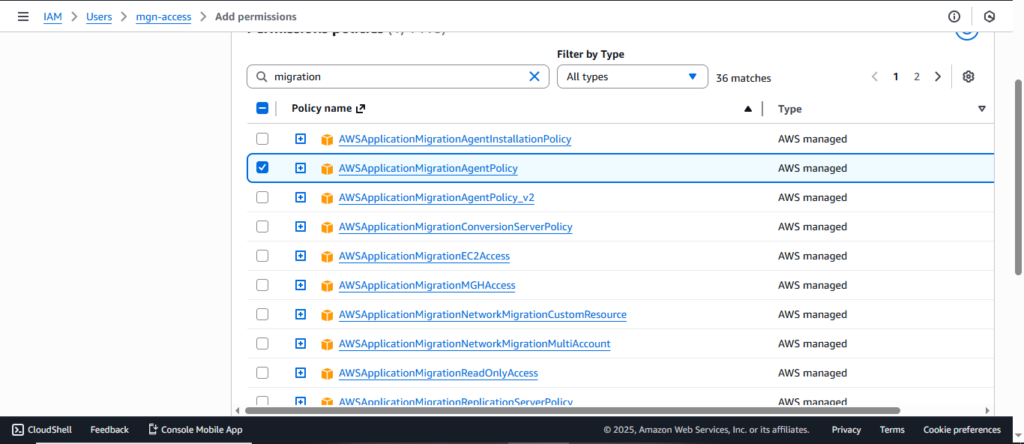
a. Create anIAM role plusset up related policies
MGN needs IAM permissions for: Reading/writing replication data , Creating temporary replication servers, Creating AMIs, Launching test & cutover EC2 instances
You will create IAM roles using: AWS Application Migration Agent Policy
b. Create Access Keys
- Those keys get used when setting up the Replication Agent. They come into play right at install time.
- Access key ID, Secret access key
- Make them safe right away.
c. Network Requirements (Important)
| Port | Purpose |
|---|---|
| 1500 | Replication traffic from source to replication server |
| 443 | MGN service communication |
| 22 | SSH access for Linux servers |
These must be allowed on the source machine.
2. Add the server on MGN service and Install the Replication Agent on Source Server
Once IAM is ready, install the AWS MGN Linux agent. (Works up to Linux kernel version 6.8.)
a. Setup a server using AWS MGN on source server
The agent does: Disk scanning, Block-level replication setup, Connects to replication server (temporary EC2), Synchronizes disks to AWS EBS volumes.
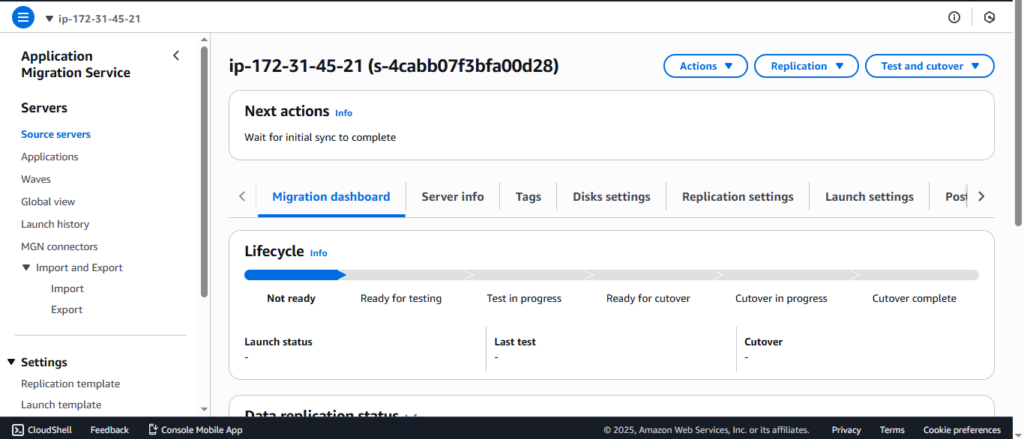
Note: When you add the server, the AWS dashboard shows the command to set up the replication tool on the source machine – it changes based on your region, access key, along with secret key
b. InsideStuff Going On
- MGN fires up a copy machine – this one’s just a short-term EC2 setup
- Source disk – Replication server – EBS disks
- Data flows nonstop, without breaks or pauses
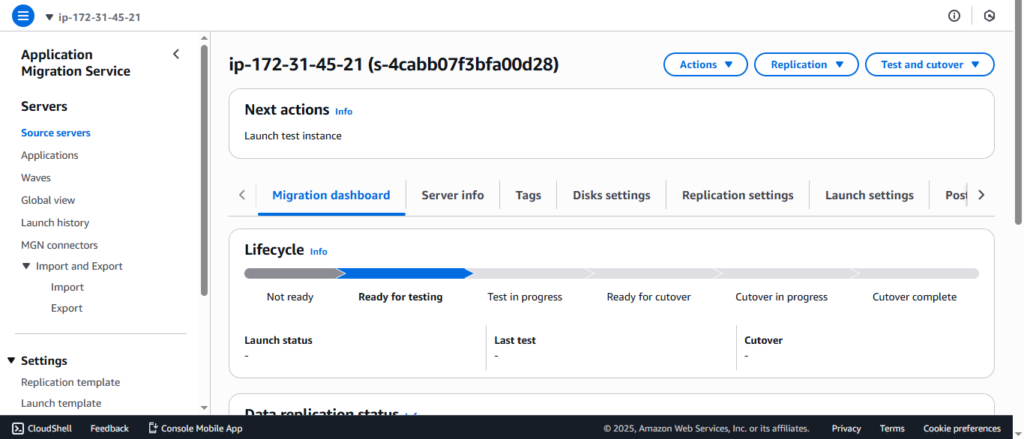
- When replication works well, the server shows: “Ready for Testing”
- This keeps your original setup safe, whereas AWS runs an up-to-the-minute copy.
Case Study : Nearly $40K AWS Cloud Cost Reduction in Just 6 Weeks
3. Configure the Launch Template
This part explains how your moved server works once it’s on AWS.
Configure: Instance type, Subnet/VPC, Security groups, Disk mapping, Tags
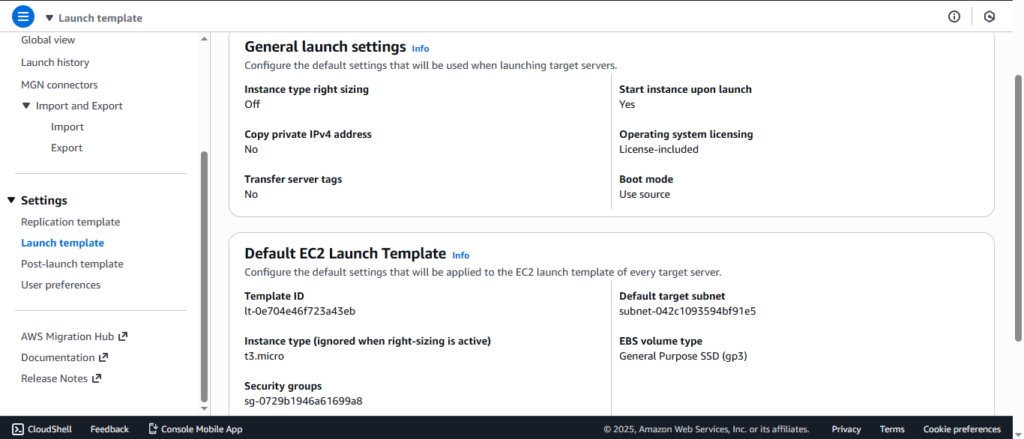
Important Note:
Test or cutover setups won’t have a public IP unless set up that way.
If you’re using SSH to verify things, just check this: Assign public IP manually
Our Ebook : Cloud Migration for Modern Businesses
4. Run Test, Validate, and Cutover
a. Launch Test Instance
Once the test starts, that’s when you check things work – using what pops up right then
- Application functionality
- Network connectivity
- Storage reliability plus information safety
- OS boot behavior
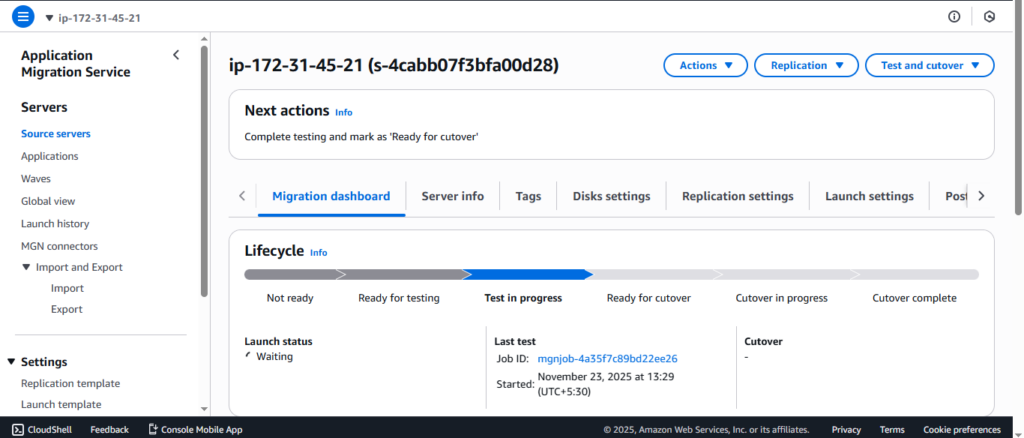
You can log in via SSH to the test machine – give it a public IP if necessary then check whether everything runs just like on the original server.
After tests finish – assuming all seems fine:
- You don’t remove the test version by hand.
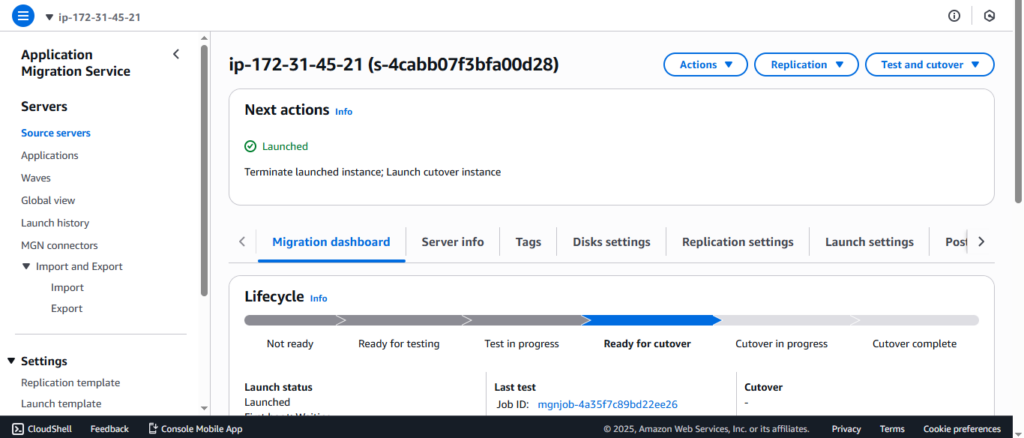
- Just head over to the AWS MGN dashboard – then flag the machine as “Ready for Cutover.”
As soon as you mark it Ready for Cutover, AWS MGN automatically:
- Terminates the Test Instance
- Cleans up test lifecycle resources
- Gets the server ready before the last sync kicks off
b. Cutover
Once you’re set for the last move, kick off the switch-over phase.
Cutover workflow:
- MGN does one last sync so every new bit from the original server gets copied over.
- AWS fires up the Cutover Instance it turns into your live EC2 machine. Once it’s running, you’re good to go.
- Check the setup to make sure it’s right
- App works just fine
- Data is consistent
- Network plus security settings work right
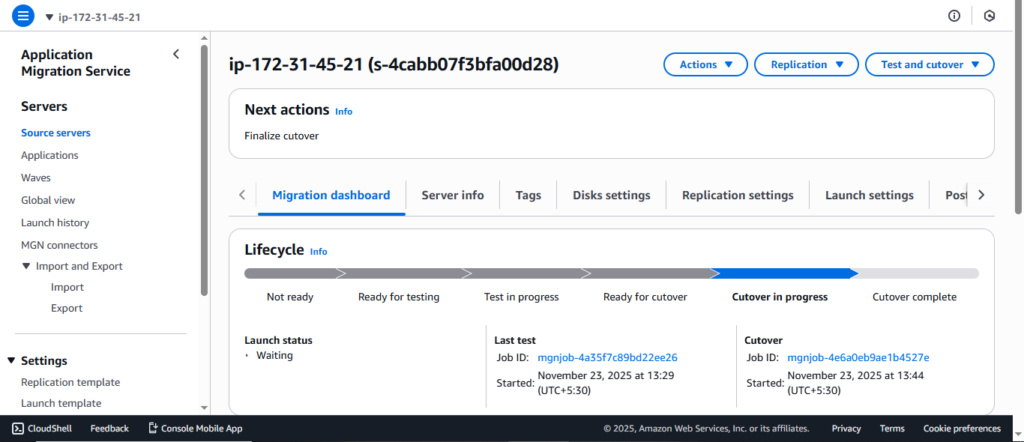
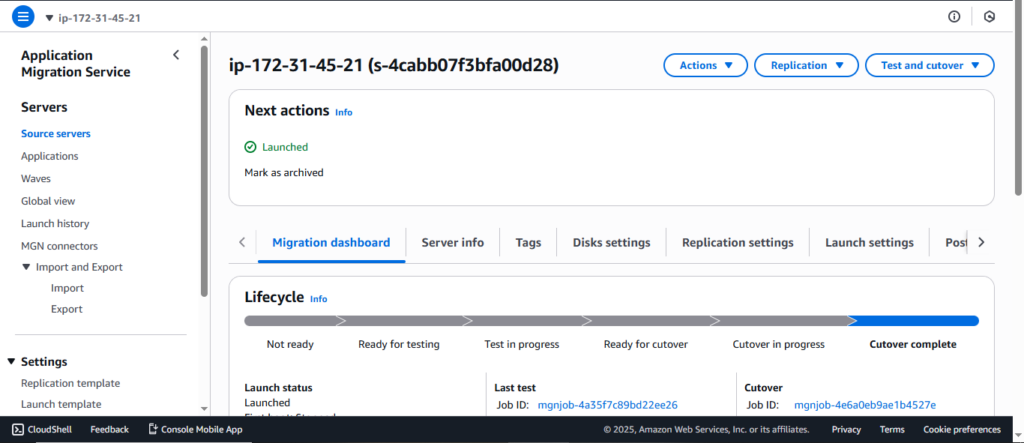
Once you’re sure it’s running fine, head over to the AWS MGN dashboard -then hit Finalize Cutover.
When you click Finalize Cutover:
- The lifecycle stage shifts from cutover ongoing cutover finished
- The source server got cut off
- AWS flags the move as done right
- Your Cutover Instance is now the official production instance
This move matters since it tells AWS MGN the transfer’s done – no more copying or updating needed from now on.
5. Cleanup (MANDATORY)
After successful cutover:
- Delete replication servers
- Remove EBS replication disks
- Stop billing of temporary resources
- Remove source server entries
- Revoke/remove IAM credentials used for agent
- Good cleanup avoids unnecessary cloud costs.
Conclusion
AWS MGN helps move servers to the cloud quickly while keeping things stable. This tool makes copying data easier, turns machines into compatible formats automatically – so there’s less time offline.
It handles complex steps without extra effort, streamlining the whole shift process no matter the setup size.
When shifting a little task or a whole data center, MGN gives you this:
- A consistent migration pattern
- Strong security
- Automated testing and cutover
- Seamless integration with AWS services
- Using the steps above ensures a smooth, predictable migration – from replication to final production cutover.
References
- AWS Application Migration Service Documentation( https://docs.aws.amazon.com/mgn/)
- MGN Agent InstallationGuide (https://docs.aws.amazon.com/mgn/latest/ug/agent-installation.html)
- AWS Migration Whitepapers (https://docs.aws.amazon.com/whitepapers/latest/aws-migration-whitepaper/welcome.html)