Classless Inter Domain Routing Made Easy

Introduction :
One day I was working with VPC (Virtual Private Cloud) inside AWS(Amazon Web Services), where I had a need to calculate the CIDR notation of an IP address and subnet combinations.
I had to use online tools to calculate the Subnets and CIDR every time when I was working with VPC, but I found it interesting that how the network get  broken into different small Networks. So, finally I decided why not to learn CIDR Methods, and then calculate it by my own side instead of using tools every time.
But the questions that striked in my mind were:
  • What is CIDR ?
  • How CIDR Came into Picture ?
  • What CIDR do ?
For Understanding CIDR – (Classless Inter-Domain Routing) few thing need to be cleared before :

1. IP Addresses
2. Structure of IP Address
3. Internet Protocol Address Types
4. Classes
5. Network Mask
6. Subnetting

IP Address –

It is the Address of the Computer, Laptop, Printers or even of the Mobile Sets.
Everyone has some Address, so as these devices also have an Internet Protocol Address (IP Address), also called as Logical Address.
In a Network there are many Computers …
Network..??
A Network is a group of two or more Computers Linked Together.
So When there are Many Computers in a Network, We need to uniquely identify each Computer, so there IP ADDRESS works as an Unique Identifier for Computers and Other Devices.
For Example : There are Twin Sisters, How we are going to Identify them differently  
By their Name that are unique for each of them.
Here Name of the Girls are the IP Addresses that will be unique and the two Girls are the two Devices.

Structure of IP Address –

Now the Question is How do an IP Address looks like??
IP ADDRESS : 192.168.33.10
IP ADDRESS is made up of 32-Bit – 8.8.8.8 = (8+8+8+8=32 Bits)
A bit (short for binary digit) is the smallest unit of data in a computer.
Binary Conversion for 192 :
192 :    128      64       32      16           8      4          2         1
              1        1         0         0           0       0          0         0
          Bit 1    Bit 2    Bit 3   Bit 4     Bit 5    Bit 6   Bit 7     Bit 8    – Total Bit = 8
128+64 = 192
So, 0’s for Other and 1 for the Number whose sum will be 192
Binary Conversion for 168 :
168 :    128      64       32         16       8           4         2          1
             1          0         1           0        1           0         0          0
           Bit 1    Bit 2    Bit 3   Bit 4     Bit 5    Bit 6   Bit 7     Bit 8 – Total Bit = 8
Binary Conversion for 33 :
  33 :   128        64       32        16       8           4         2          1
             0          0         1           0        0           0         0          1
           Bit 1    Bit 2    Bit 3   Bit 4     Bit 5    Bit 6   Bit 7     Bit 8 – Total Bit = 8
Binary Conversion for 10 :
10 :     128       64       32         16       8          4          2          1
             0          0         0           0        1           0         1          0
           Bit 1    Bit 2    Bit 3   Bit 4     Bit 5    Bit 6   Bit 7     Bit 8 – Total Bit = 8
8.8.8.8 – total of 32 Bit.
Dotted Decimal Notation : In dot form 4 Sections are called as OCTETS – Vendor Neutral Term for Bytes.
Let a IP Be : 200.10.20.30
Inside a Network : 200.10.20 – will remain same and 30 will be unique for each.

Type of IP Address –

  1. Assignment Method
  2. Classes : 1) Classful
                    2) Classless
  3. Public / Private
  4. Version

Assignment Methods :

Assignment Method is method that defines how to assign an IP address to a Device.
IP Address can be assigned in two ways
1) Static IP Address
Static IP Address is the IP Address in which configuration is done Manually and is used in small networks.
2) Dynamic IP Address
Dynamic IP Address is the IP Address in which the configuration is done by the Computer Interface or by the Host Interface – DHCP (Dynamic Host Configuration Protocol)
— Configuration is Automatic–

Classes :

classes define that in an IP, How much part will be for Network and How much is for Host.
There are 2 types of classes in IP Addressing :
  1. Classful
  2. Classless
CLASSFUL : IP Address are divided into 5 Classes;
Class A : 0 – 126                         N.H.H.H              Assigned for Large Organization
127                                               N.H.H.H             Assigned for the Loopback
Class B : 128 – 191                     N.N.H.H              Assigned for Medium Companies
Class C : 192 – 223                     N.N.N.H              Assigned for Small Organizations
Class D : 224 – 239                                                 Assigned for Multicasting
Class E : 240 – 255                                                 Assigned for Experimental Purpose

CLASSLESS : Classless addressing is an  IP address where a subnet mask does not define its class.  Subnet mask can be anywhere between bit 0 and bit 31.
CLASS A IP ADDRESS :
Range of Class A IP Address :  0.0.0.0 – 127.255.255.255
Network ID : 8 Bit
Host ID : 24 Bit (8+8+8)
  • IP Address begins with 0,First Bit will always be Zero
  • 7 Remaining Bits in Network part : Only 128 Possible class A Network
  • 24 Bits in Local Part : Over 16 million hosts per Class A Network
  • All class A network parts are assigned or reserved.
Network ID(N)
Host ID(H)
Host ID(H)
Host ID(H)
0                     7 8                                                                31
0NNNNNNN       .      HHHHHHHH     .      HHHHHHHH   .         HHHHHHHH
In Binary :
Class A starts from : 00000000.00000000.00000000.00000000
Class A ends at      : 01111111.11111111.11111111.11111111
In Decimal :
Class A IP Address is from 0.0.0.0 to 127.255.255.255
Number of Networks : 2^7 = 128
Number of Hosts : 2^24
SOME EXCEPTIONS IN CLASS A : Cannot be assigned to host
0.0.0.0 : For Self check – Represent Default Network or M
0.255.255.255 : For Self check – Represent Default Network or My IP
127.0.0.0 : Loop Back Address Range : solve NIC Problem
127.255.255.255 : Loop Back Address Range : solve NIC Problem

CLASS B IP ADDRESS :
Range of Class B IP Address : 128.0.0.0 – 191.255.255.255
Network ID : 16 Bit(8+8)
Host ID : 16 Bit (8+8)
  • First two Bit will always be One and Zero
  • 14 Bits in Network part – Over 16,000 possible Class B Network
  • 16 Bits in Local Part  – Over 65,000 possible Hosts
Network ID(N)
Network ID(N)
Host ID(H)
Host ID(H)
0                                        15 | 16                                                    31
10NNNNNN          .     NNNNNNNN     . HHHHHHHH       . HHHHHHHH
In Binary :
Class B starts fr0m : 10000000.00000000.00000000.00000000
Class B ends at        : 10111111.11111111.11111111.11111111
In Decimal :
Class B IP Address is from  128.0.0.0 to 191.255.255.255
Number of Networks : 2^14
Number of Hosts : 2^16
SOME EXCEPTIONS IN CLASS B : Cannot be assigned to host
169.254.X.X : Reserved for APIPA (Automatic Private IP Address) – Host take IP Automatically ifit doesn’t get any DHCP Server in the Network.

CLASS C IP ADDRESS :
Range of Class B IP Address : 192.0.0.0 – 223.255.255.255
Network ID : 24 Bit(8+8+8)
Host ID : 8 Bit (8)
**Most Popular and Commonly Used**
  • First three Bit will always be One,One and Zero
  • 21 Bits in Network part – Over 2 Million  possible Class C Network
  • 8 Bits in Local Part  – Only  256 possible Hosts per class C Network
Network ID(N)
Network ID(N)
Network ID(N)
Host ID(H)
0                                                                        23 | 24                             31
110NNNNN            .    NNNNNNNN   .      NNNNNNNN     .      HHHHHHHH
In Binary :
Class C starts from : 1100000.00000000.00000000.00000000
Class C ends at        : 11011111.11111111.11111111.11111111
In Decimal :
Class C IP Address is from  192.0.0.0 to 223.255.255.255
Number of Networks : 2^21
Number of Hosts : 2^8


CLASS D IP ADDRESS :
Range : 224.0.0.0 – 239.255.255.255
IP Address begins with 1110

Used for Multicasting, Not defining networks.
  • Sending messages to group of hosts
  • just to one (Unicasting)
  • ALL HOSTS (Broadcasting)
  • Say to send a videoconference stream to a group of receivers
In Binary :
Class D starts from : 11100000.00000000.00000000.00000000
Class D end at        : 11101111.11111111.11111111.11111111
In Decimal :
Class D IP Address is from  224.0.0.0 to 239.255.255.255
224.0.0.5 – OSPF
All OSPF Routers address is used to send HELLO PACKETS
224.0.0.6 – OSPF
All the routers address is used to send OSPF routing information to designated routers on a network segment.
224.0.0.9 – The Routing Information Protocol (RIP) version 2 group address is used to send routing information to all RIP2-aware routers on a network segment.
224.0.0.10 – EIGRP
used to send routing information to all EIGRP routers on a network segment.
224.0.0.18 – Virtual Router Redundancy Protocol.

Private/Public:

PUBLIC :
A public also called as  External IP address is the one that your ISP (Internet Service Provider) provides to identify your home network to the outside world. It is an IP address that is unique throughout the entire Internet.
When you’re setting up your router, if your ISP issued you a static IP address, you enter it into your router’s settings. For a dynamic IP address, you specify DHCP in your router’s network settings. DHCP is Dynamic Host Control Protocol. It tells your router to accept whatever public IP address your ISP issues.
Those who wanted not to connect through internet but they wanted to run their network on TCP/IP Protocol
Here came the concept of PRIVATE  IP
PRIVATE :
Just as your network’s public IP address is issued by your ISP, your router issues private (or internal) IP addresses to each network device inside your network. This provides unique identification for devices that are within your home network, such as your computer, your Slingbox, and so on.
THEY ARE NOT ROUTABLE
CLASS A PRIVATE ADDRESS   10.0.0.0 – 10.255.255.255
CLASS B PRIVATE ADDRESS   172.16.0.0 – 172.31.255.255
CLASS C PRIVATE ADDRESS   192.168.0.0 – 192.168.255.255
Internet Protocol Address :
           Reserved IP Address :
  1. Addresses beginning with 127 are reserved for loopback and internal testing – Used for Self Testing that TCP/IP is properly working or not.
  2. XXX.0.0.0 reserved for Network Address
  3. XXX.255.255.255 reserved for Broadcast
  4. 0.0.0.0 – First Address – Represent Local Network / Used for Default Routing
  5. 255.255.255.255 – Broadcast
Example : Let a Class A IP Address be – 101.101.101.101
               Network Address – 101.0.0.0
               BroadCast Address – 101.255.255.255
 : Let a Class B IP Address be – 150.150.150.150
               Network Address – 150.150.0.0

               BroadCast Address – 150.150.255.255

I hope that gives you a good knowledge of IP Addresses and their classes.
Now, We can move on to what sub-netting is, in my next blog.
Please Follow this link to get on to sub-netting –
Classless Inter Domain Routing Made Easy (Cont..)

Gitolite


Requirement

We need private git repositories for internally use in our project so we use Gitolite for this requirement. Our client has a lot of consultants, partners and short term employees working with their code so they needed a good way of controlling access to the repos and preferably without giving each of them a unix user on the server where the repo is hosted.

What is Gitolite?

Gitolite is basically an access layer on top of Git. Users are granted access to repos via a simple config file and we as an admin only needs the users public SSH key and a username from the user. Gitolite uses this to grant or deny access to our Git repositories. And it does this via a git repository named gitolite-admin.

Installation

We need a public key and a Gitolite user through which we will setup the Gitolite.

In this case I have used my base machine(Ubuntu) public key so that only my machine can manage Gitolite.

Now we will copy this public key to a virtual machine

$ scp ~/.ssh/gitolite.pub git@192.168.0.20:/home/git


where vagrant is the user of my virtual machine & its IP is 192.168.0.20

Now we will install & create a gitolite user on remote machine which will be hosting gitolite.

root@git:~# apt-get install gitolite3
 
root@git:~# adduser gitolite
 
Now we need to remove password of gitolite user from below command
 
root@git:~# passwd -d gitolite
 
 
Let’s move & change the ownership of this public key.
root@git:~# mv gitolite.pub /home/gitolite/
root@git:~# chown gitolite:gitolite /home/gitolite/gitolite.pub
 
Become the gitolite user
 
root@git:~# su – gitolite
 
Now setup the gitolite with the public key
 
gitolite@git:~# gitolite setup -pk gitolite.pub
 
Now to manage the repositories, users and access-rights we will download the gitolite-admin(git repository) to our base machine.
 
$ git clone gitolite@192.168.0.20:gitolite-admin
$ cd gitolite-admin
$ ls -l
total
8
drwxr-xr-x
2 nitin nitin 4096 Jan 10 17:52 conf/
drwxr-xr-x
2 nitin nitin 4096 Jan  9 13:43 keydir/
 
where “keydir” is the directory where we store our user’s keys and that key name must be same as existing username on the system.
 
In conf directory there is a “gitolite.conf” file which controls which repositories are available on the system and who has which rights to those repositories.
We just need to add new repository name & users who will access it and this file will create the repo & grant the permission on it accordingly.
Let us explore my gitolite.conf file in which I have added a new repository called “opstreeblog”
$ cat conf/gitolite.conf

# Group name & members

@admin = nitin
@staff    = jatin james
 
# Gitolite admin repository

repo gitolite-admin
RW+   = gitolite @admin
 
# Read-Write permission to all the users on testing repo

repo testing
RW+    = @all
 
# Read-Write permission to user sandy & the admin group. And Read-Only access to staff group

repo opstreeblog
   RW+   = sandy @admin
   R         = @staff

where ‘@’ denotes the user group i.e @staff is a group & jatin, james are the users of this group and these names must be similar to the key name stored in keydir directory.
For example “jatin” user must have the public key named “jatin.pub”

Let’s have a quick test of our setup

$ git commit conf/gitolite.conf -m “added opstreeblog repo”
 
[master 357bbc8] added “opstreeblog” repo
 
1 files changed, 9 insertions(+), 1 deletions(-)
 
nitin@Latitude-3460:~/gitolite-admin$ git push origin master
 
Counting objects: 7, done.
Delta compression using up to 4 threads.
Compressing objects: 100% (3/3), done.
Writing objects: 100% (4/4), 428 bytes, done.
Total
4 (delta 0), reused 0 (delta 0)
remote: Initialized empty Git repository in /home/gitolite/repositories/opstreeblog.git/
To gitbox:gitolite-admin d595439..357bbc8
master -> master
 
I hope that gives you a good overview of how to install and manage Gitolite.

Kitchen Chef’s diagnosis center

Introduction

This time we familiarize you with the backings of chef kitchen. Chef kitchen provides you facility of trial and verification of your cookbooks over different  environment so that you can confidently use  them on your targeted infrastructure. This may be getting boring some times but here is always some seeds in oranges.

Prerequisites

This blog requires an initial information about Git and Vagrant. This blog uses centos7   as platform. It needs basic understanding of chef, it’s cookbooks and chef kitchen. To know about chef cookbooks and work with  chef kitchen follow our previous blogs of this series Chef Start here with ease…


Setup Kitchen

To setup kitchen chase same procedure as we cater in our previous blog Chef-Kitchen  Do it simply .

Backings of  Kitchen

Chef kitchen is the diagnosis center of chef.  Here  you can test the authenticity of your cookbooks on different platforms and confidently use them on your infra. Kitchen achive this by using its configuration file where you define all the things which are necessary to run the complete cycle of kitchen.

.kitchen.yml

This file contains all the required stuff to  run chef kitchen. This file is divided into four major sections.


  • Driver: This is  the name of a driver that will be used to create platform instances used during cookbook testing. This is the default driver used for all platforms and suites unless a platform or suite specifies a driver to override the default driver for that platform or suite; a driver specified for a suite will override a driver set for a platform.


  • Provisioner: This specifies how the chef-client will be simulated during testing. chef_zero andchef_solo are the most common provisioners used for testing cookbooks


  • Platforms: This is a the name of a platform on which Kitchen will perform cookbook testing, for example,ubuntu-12.04 or centos-6.4; depending on the platform.
  • Suites: This is a collection of test suites, with each suite_name grouping defining an aspect of a cookbook to be tested.


.kitchen directory

This directory holds logs for every kitchen run for each platform entry in .kitchen.yml file. This folder also holds keypair for the ssh into your virtual environment.

Analysis of Kitchen

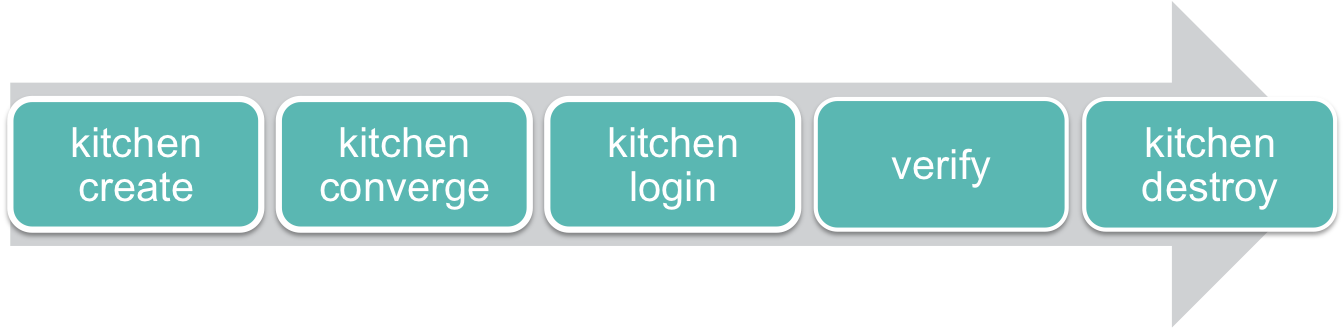
Kitchen performs its own complete cycle of testing via different phases.  Kitchen has its five phases i.e., create, converge, login, verify and destroy.  Each phase has its own significance and some specific task is gonna performed in every phase.

Create

In this step chef’s kitchen tool creates a virtual instance. This virtual instance could use cloud or any other virtualization technology. Chef supports cookbook testing across many cloud providers and virtualization technologies.

Converge

This phase is responsible for application of your cookbook on virtual  instance. Here your all  cookbooks deployed into the virtual instance, though in next steps you can verify the complete functioning of your cookbooks.

Login

This step creates a ssh session into  your machine and provide you a login into it. So that you can run your test to verify the proper functioning of your cookbook.

Verify

In this  step you manually perform all checks so that you can certify the authenticity of your cookbook over all platforms.

Destroy

This is the final step  of your kitchen testing cycle. Here you destroy your virtual environment after entire testing phases.


Here is also a combine command for all these phases i.e.,  kitchen test. This command club all the commands in below listed manner.
  • Kitchen destroy
  • Kitchen create
  • Kitchen converge
  • Kitchen verify


Hass finally this over!!  I know you too get frustrated with the theories. We now aware with the backings of Chef Kitchen.


“Be Warned: I Am Bored. This Could Get Dangerous.”
1366791921.gif

Chef-Kitchen Do it simply..


If you are from agile background you would be already aware about the importance of testing your code as you develop. As DevOps SCM tools are maturing where we try to have our complete infrastructure as code it becomes a dire necessity to have our infrastructure code to be tested as well. In this blog I’ll showcase how I’m using the testing capability of Chef to test our Chef code.

Prerequisites

This blog assumes that you have a basic understanding of Chef, Docker, Git and Vagrant. This blog is written in consideration with centos as platform. You can follow same procedure for ubuntu with some basic changes.
 
Setup Kitchen
Clone from our github repository to spin up a vagrant with kitchen and other chef tools.
 
$ git clone git@github.com:OpsTree/Chef.git
 
  • Go to testkitchen directory.  
$ cd  Chef/centos/testkitchen
 
 
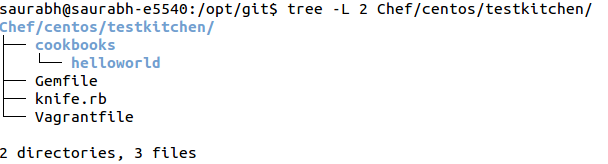
This directory includes a Vagrantfile, a cookbook and a knife.rb file.
 
  • View vagrantfile for provisioning.
This Vagrantfile have some basic vagrant provisioning with shell.
 
$ cat Vagrantfile
 
This file provision your vagrant using shell.
 
 
As this block contains a lot of stuff. FIrstly this need two rpm files to be placed in current directory (i.e. vagrant/chef/centos/testkitchen). Download these rpm using following commands. This vagrantfile uses centos/7 as base box.
 
$ wget ftp://195.220.108.108/linux/centos/7.2.1511/extras/x86_64/Packages/epel-release-7-5.noarch.rpm
 
Next in this block we are installing docker and rvm to manage our ruby version to 2.2.4.
 
  • Spin Up Vagrant box
$ vagrant up
 
This will perform everything for you. And creates a running vagrant with centos7 platform. Next login into this vagrant box using following command.
 
$ vagrant  ssh
 
Your testing environment is ready and you are all set to use kitchen to test and verify your cookbooks in different platforms using docker container.  

Test your first cookbook  

Change directory to /vagrant. /vagrant directory is shared between host and guest machine.
 
$ cd /vagrant
 
This cloned repo has its first cookbook “helloworld” in cookbooks folder. This cookbook creates a directory and place a hello.txt file in it.
 
 
Go to /vagrant folder and start using kitchen.
  • Initialize kitchen
$ kitchen init –driver=docker
 
 
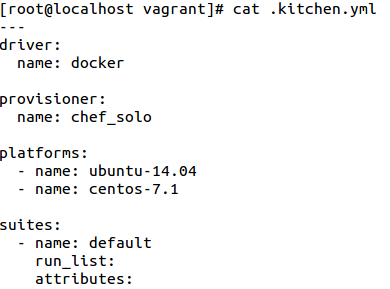
This command initialize mandatory stuff to start with your kitchen. This creates  .kitchen.yml, chefignore file and a test folder.
.kitchen.yml file is the main configuration file for kitchen. This file contains mainly 4 blocks driver, provisioner, platforms and suites.
    • Driver:  This is the name of driver that is used to create new node for testing
    • Provisioner: This is the chef provisioner to simulate test, chef-zero and chef-solo are the options.
    • Platforms: This is the type of platform on which kitchen runs test eg. ubuntu-14.04 and centos-7.1
    • Suites: This is the collection of test suites with runlist and attributes.
       
 
Chefignore file determine which files to ignore when uploading cookbooks.
Test folder contains all test files running over the cookbooks.
 
  • Install required gems
Install required gems by using bundle. As your directory contains a Gemfile where gems are described with their specific version.  
 
$ bundle install
 
Then to verify run following command.
 
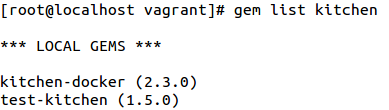
$ gem list kitchen
As this install two essential gems kitchen-docker and test-kitchen.
 
  • List all  your nodes.
$ bundle exec kitchen list
This command list all your nodes with last action performed on them.

Start kitchen cycle

  • Create your node using following command
$ bundle exec kitchen create
 
    • This command pulls image of docker if they are not present locally.
    • Install  openssh-server and other essential packages in newly created docker container.
if get “Kitchen is finished.” as final output. Now verify with kitchen list once again.
 
 
  • Converge your node
This step deploys your cookbook to newly created node. So let’s tell kitchen which cookbook to run. Edit .kitchen.yml file and add recipe in runlist attribute of suits block.
Now run following command to converge your node.
 
$ bundle exec kitchen converge
 
    • Chef solo and dna.json got prepared and pushed into node /tmp/kitchen directory
    • This will put cookbook into the node and install chef by performing an Omnibus package installation.
    • Chef run initiated with information in .kitchen.yml file.
Verify again with kitchen list.
 
  • Login into node
$ bundle exec kitchen login  default-ubuntu-1404
&&
$ bundle exec kitchen login  default-centos
    • Login into node and manually verify /data directory and hello.txt file in it.
 
  • Verify your cookbook
Look into test directory structure.
 
 
As this directory contains “default” folder this is corresponding to your suit name i.e. default. Now create a directory structure to put files in particular location.
 
    • Use Bats to create test
 
$ mkdir -p test/integration/default/bats
 
Busser is the component which provides facility of testing in your node. Bats directory tells kitchen to which Busser runner plugin needs to be installed on the remote instance. In other words the bats directory name will cause Busser to installbusser-bats from RubyGems.
 
  • Write first test file.
$ vim  test/integration/default/bats/hellotest.bats
 
#!/usr/bin/env bats
 
@test “/data directory found in path” {
 run stat /data
 [ “$status” -eq 0 ]
}
 
@test “hello.txt file found in path” {
 run stat /data/hello.txt
 [ “$status” -eq 0 ]
}
  • Run kitchen verify
$ bundle exec kitchen verify
 
Now verify again with kitchen list, and see last action.
 
 
    • Use serverspec to create test
 
$ mkdir -p test/integration/default/serverspec
 
  • Write a test
$ vim  test/integration/default/serverspec/hellotest_spec.rb
 
require ‘serverspec’
 
# Required by serverspec
 
set :backend, :exec
 
describe “file hello.txt status” do
 it “file hello.txt” do
   expect(file(“/data/hello.txt”)).to exist
 end
end
 
  • Run kitchen verify
$ bundle exec kitchen verify
 
Now verify again with kitchen list, and see last action.


  • Destroy your node
$ bundle exec kitchen destroy
 
This will destroy your node.

Kitchen test

$ bundle exec kitchen test
 
Kitchen test is an option to perform complete kitchen cycle with one command. This destroy existed nodes and then create, converge, verify node with your predefined suit in .kitchen.yml. And finally it destroy the node.
 
Now your cookbook is tested. So feel confident to use it.  


Chef-Cookbooks Walls of chef-house..

Introduction

As we work with cookbook in our previous blog, we are now aware about how chef really works and manage machines using cookbooks. Its crucial to understand the potential of thoughts and theories behind any concept. According to Albert Einstein,
“A Theory Can Be Proved By Experiment;
But No Paths Leads from Experiments To The Birth Of Theory”

Prerequisites

To follow this article you need a prior information about Git and Vagrant. This blog uses centos7   as platform. It needs basic understanding of chef and it’s cookbooks. To know about chef cookbooks follow our previous blogs of this series Chef Start here with ease.. .

Get started

Clone our github repository and spin up a bare centos7 vagrant machine.
$ git clone https://github.com/OpsTree/Chef.git
Go to Chef/centos/chefCookbooksBackings directory.
$ cd  Chef/centos/chefCookbooksBackings
  • This directory have a Vagrantfile. Which can initiate a centos7 vagrant box.
$ cat Vagrantfile
This file update and install some basic tools in your vagrant machine using vagrant shell provisioning.
  • Download Chefdk using below available command
$ cd Chef/centos/chefResources
$ wget https://opscode-omnibus-packages.s3.amazonaws.com/el/7/x86_64/chefdk-0.11.2-1.el7.x86_64.rpm
  • This directory also includes a knife.rb file which sets the cookbook folder path and default editor for the virtual machine.
  • Launch new vagrant machine and login into it via ssh.
$ vagrant up
$ vagrant ssh

Cookbooks

As per chef’s official document “A cookbook is the fundamental unit of configuration and policy distribution. A cookbook defines a scenario and contains everything that is required to support that scenario.”
Chef cookbooks are the first configurational unit of chef. These are the like a box which contains all the basic tools for the comfortable management of any machine. It consist of
  • Recipes
  • Attribute
  • File
  • Templates
  • libraries, definitions, and custom resources

Directory Structure

The directory structure of any cookbook  is very straight and simple. We took an example cookbook which we are going to create in our next section, so have a look on what it looks like on completion.
$ tree cookbooks/nginxVhostExtended/
  • Attributes
This directory contains all files which holds the values of the variables used in the cookbook.
  • Definitions
This directory contains definition of new created resources.
  • Files
This folder holds static file used in cookbook.
  • Libraries
Allows users to use extended ruby libraries for new class declarations.
  • Providers
This will contains actions which will be taken on using a custom resource declared in resources directory.
  • Recipes
This directory holds all the the recipes of any cookbook. These are the main execution part of the cookbook.
  • Resources
Here custom resources are defined.
  • Templates
This directory provide templates for the dynamic solutions of a cookbook.
  • Metadata.rb
This file ensures that every cookbook is deployed correctly. Also holds the general information for any cookbook as like author copyright and version.

Try with a complex one

This time we introduce some extended concepts of chef cookbooks in our example cookbook. As in our previous blogs problem statement remain same to install nginx and setup nginx vhost with our cookbook. But this time we tried to be more efficient so that we can create multiple vhost in a single chef-client run.
First create a dedicated directory for our cookbooks. As in knife.rb file it will be created by following command.
$ mkdir /vagrant/cookbooks
Chef manage its cookbooks using a version control system so next we initialize and also make our first commit for /vagrant/cookbooks directory. Provide your name and email for git configuration.
$ mkdir /vagrant/cookbooks
$ cd /vagrant/cookbooks
$ git init
$ git add .
$ git config –global user.email “you@example.com”
$ git config –global user.name “Your Name”
$ git commit -m “Initial Commit”
Now you are ready to start with the creation of your next cookbook.
$ knife cookbook create nginxVhostExtended -C “Saurabh Vajpayee” -m “myemail@email.com” -I nginxv1 -r md

Create default recipe

Create a default recipe with following content to install  nginx.
$ vim /vagrant/cookbooks/nginxVhostExtended/recipes/default.rb
include_recipe ‘yum-epel’
package node[‘nginx’][‘packages’] do
action :install
end
service ‘iptables’ do
action :stop
end
service ‘nginx’ do
action [:start, :enable]
end
This time we also  included another recipe “yum-epel” in our default recipe.
Generate another recipe to configure vhost with following content.
$ chef generate recipe /vagrant/cookbooks/nginxVhostExtended/ vhost
$ vim /vagrant/cookbooks/nginxVhostExtended/recipes/vhost.rb
include_recipe ‘nginxVhostExtended’
node[‘nginx’][‘vhost’].each do |name, attrs|
 nginxVhostExtended_vhost ‘name’ do
   port attrs[‘port’]
   webroot attrs[‘webroot’]
   servername attrs[‘servername’]
   conffile attrs[‘conffile’]
 end
end
service ‘nginx’ do
action :restart
end
This recipe contains a custom resource  “nginxVhostExtended_vhost” which has its definition and attribute declaration under provider and resource directory.

Generate attribute file

Generate default attribute file with following defined variables.
$ chef generate attribute /vagrant/cookbooks/nginxVhostExtended/
default
$ vim /vagrant/cookbooks/nginxVhostExtended/attributes/default.rb
default[‘nginx’][‘packages’] = “nginx”
default[‘nginx’][‘port’] = 80
default[‘nginx’][‘webroot’] = “/usr/share/nginx/blog”
default[‘nginx’][‘servername’] = “opstree.com/blog/”
default[‘nginx’][‘conffile’] = “opstree.com/blog/.conf”
default[‘nginx’][‘vhost’] = {}
This attribute file holds default values for variable used in templates

Generate template files

Generate two templates for conf and index.html files. Use following content to paste.
$ chef generate template /vagrant/cookbooks/nginxVhostExtended/ chefmanagedconf.conf
$ chef generate template /vagrant/cookbooks/nginxVhostExtended/ index.html
$ vim /vagrant/cookbooks/nginxVhostExtended/templates/default/chefmanagedconf.conf.erb
server {
   listen       ;
   server_name  ;
   location / {
       root   ;
       index  index.html index.htm;
   }
   error_page  404              /404.html;
   location = /404.html {
       root   ;
   }
   # redirect server error pages to the static page /50x.html
   error_page   500 502 503 504  /50x.html;
   location = /50x.html {
       root   ;
        }
  }
$ vim /vagrant/cookbooks/nginxVhostExtended/templates/default/index.html.erb

<!DOCTYPE html PUBLIC “-//W3C//DTD XHTML 1.1//EN” “http://www.w3.org/TR/xhtml11/DTD/xhtml11.dtd”><html xmlns=”http://www.w3.org/1999/xhtml” xml:lang=”en”>

   <head>

       <title>Test Page for the Opstree Server </title>

   </head>

   <body>

       <h1>Welcome to <strong> <%= @servername %> </strong></h1>

   </body>

</html>

Generate a lwrp

Generate a lwrp (light weight resource provider ) using knife command and use following content.
$ chef generate lwrp /vagrant/cookbooks/nginxVhostExtended/ vhost
$ vim  /vagrant/cookbooks/nginxVhostExtended/resources/vhost.rb
actions :configure
default_action :configure
attribute :name,
 kind_of: String,
 required: true,
 name_attribute: true
attribute :port,
 kind_of: Fixnum
attribute :webroot,
 kind_of: String
attribute :servername,
 kind_of: String
attribute :conffile,
 kind_of: String
$ vim /vagrant/cookbooks/nginxVhostExtended/providers/vhost.rb
action :configure do
[:webroot, :conffile, :servername, :port].each do |attr|
      unless new_resource.instance_variable_get(“@#{attr}”)
        new_resource.instance_variable_set(“@#{attr}”, node[‘nginx’][attr])
      end
    end
[:webroot].each do |attr|
      directory new_resource.instance_variable_get(“@#{attr}”) do
        mode ‘0755’
        recursive true
      end
      template “#{new_resource.webroot}/index.html” do
        source ‘index.html.erb’
        variables(
         servername: new_resource.servername
       )
      end
    end
template “/etc/nginx/conf.d/#{new_resource.conffile}” do
  source ‘chefmanagedconf.conf.erb’
  variables(
         port: new_resource.port,
         servername: new_resource.servername,
         webroot: new_resource.webroot
       )
end
line = “127.0.0.1 #{new_resource.servername}”
file = Chef::Util::FileEdit.new(‘/etc/hosts’)
file.insert_line_if_no_match(/#{line}/, line)
file.write_file
end
Now our cookbook is ready but as we define in yum-epel dependency in our default  cookbook so in next steps we install this cookbook from chef repository.
$ git status
$ git add .
$ git commit -m “nginxVhostExtended cookbook added”
$ knife cookbook site install yum-epel

Go for it

Lets run our cookbook to just install nginx using default recipe. Create   installrunlist.json with following content.
$ vim installrunlist.json
{
“run_list”: [
“recipe[yum-epel]”,
“recipe[nginxVhostExtended]”
]
}
$ chef-client  –local-mode -j /vagrant/runlist.json
This will install your nginx server only.
Now we create a runlist file for configuring vhost.
$ vim vhostrunlist.json
{
  “nginx”: {
     “vhost”: {
       “vhost1”: {
         “webroot”: “/usr/share/nginx/chef”,
             “servername”: “chef.opstree.com”,
             “conffile”: “chef.opstree.com.conf”
             },
        “vhost2”: {
          “webroot”: “/usr/share/nginx/blog”,
             “servername”: “opstree.com/blog/”,
             “conffile”: “opstree.com/blog/.conf”
             }
           }
 },
  “run_list”: [
“recipe[yum-epel]”,
“recipe[nginxVhostExtended]”,
       “recipe[nginxVhostExtended::vhost]”
              ]
}
$ chef-client  –local-mode -j /vagrant/vhostrunlist.json
This will run and configure two vhost opstree.com/blog/ and chef.opstree.com on your machine. Now with our new cookbook we are able to create and configure multiple vhost in single run.
We took some extended concepts of chef cookbooks. Chef and it’s cookbooks are beyond away from all limits. This is just a drop from the ocean but every drop in the ocean counts…
“You need an entire life just to know about tomatoes. Ferran Adria”
Don’t be panic by messing up with a lot of things and start playing with your own written cookbooks.