Can you integrate a GitHub Webhook with Privately hosted Jenkins No? Think again

Introduction

Triggering Jenkins builds automatically after every code commit is a core requirement in any continuous integration setup. Jenkins supports automated triggers through repository polling or event based notifications. While polling works, it consumes resources and introduces delays. Push based triggering through webhooks is far more efficient.

The difficulty appears when Jenkins is hosted inside a private network and the version control system is hosted on a cloud platform such as GitLab. In this scenario, GitLab cannot directly reach the Jenkins endpoint, making webhook based triggering difficult without exposing Jenkins publicly.

Webhook Relay solves this problem by acting as a secure bridge between GitLab and a privately hosted Jenkins server. This article explains how GitLab webhooks can trigger Jenkins jobs using Webhook Relay, based on real implementation experience.

Installing the Webhook Relay Agent

The Webhook Relay agent needs to run on the same machine where Jenkins is hosted or where Jenkins is reachable internally.

Below is the installation process shown as step based instructions.

# download the relay binary
curl -sSL https://storage.googleapis.com/webhookrelay/downloads/relay-linux-amd64 > relay
# make the binary executable
chmod +x relay

# move it to a directory in system path
sudo mv relay /usr/local/bin/relay

Webhook Relay service runs on a public endpoint, while this agent runs locally and listens for forwarded webhook events.

Creating a Webhook Relay Account

Create an account on the official Webhook Relay platform using the registration page shown below.

https://my.webhookrelay.com/register

After signing up, access to the Webhook Relay dashboard is provided, where authentication tokens can be generated.

Authenticating the Relay Agent

From the dashboard, create an access token. This generates a key and secret pair.

Use those credentials to authenticate the relay agent.

relay login \
-k
<your_token_key> \
-s <your_token_secret>

A successful login message confirms that the agent is connected and ready.

Creating the GitLab Repository

Create a GitLab repository for testing webhook integration. To keep the setup simple, a public repository can be used.

For reference, assume the repository name is WebhookProject.

Preparing Jenkins for GitLab Webhooks

Install the required Jenkins plugins from the plugin manager.

Navigate through the Jenkins dashboard to install
GitLab Plugin
GitLab Hook Plugin

Once installed, Jenkins becomes capable of receiving GitLab webhook events.

Creating the Jenkins Job

Create a new Jenkins job and configure it to pull source code from the GitLab repository.

Enable the option that allows Jenkins to be triggered by GitLab webhooks.

After enabling this option, Jenkins generates a webhook endpoint associated with the job. It usually follows this pattern.

http://<jenkins-host>:8080/project/<job-name>

Example shown for reference only.

Copy this endpoint, as it will be used in the forwarding configuration.

Forwarding Webhooks Using Webhook Relay

Start webhook forwarding by creating a relay bucket. This bucket acts as a routing channel between GitLab and Jenkins.

relay forward \
--bucket gitlab-jenkins \
http://<jenkins-host>:8080/project/<job-name>

Important note
Do not stop this process. Keep it running in the background.
Open a new terminal tab for further steps.

Once this command starts, the relay agent generates a public forwarding URL.

Configuring GitLab Webhook

Open the GitLab repository settings and navigate to the integrations or webhook section.

Paste the forwarding URL generated by Webhook Relay into the webhook URL field.

For initial testing, SSL verification can be disabled to avoid certificate related issues.

Save the webhook configuration.

Testing the Integration

Clone the GitLab repository locally and push a new commit.

git add .
git commit -m "test webhook trigger"
git push origin main

As soon as the push is completed, GitLab sends a webhook event. Webhook Relay receives it and forwards it to the local agent, which triggers the Jenkins job internally.

You can verify this by checking the Jenkins job build history.

Viewing Logs

GitLab webhook logs can be viewed from
Repository settings
Integrations
Webhook edit section

Webhook Relay logs are available in the Relay Logs section of the Webhook Relay dashboard.

Jenkins build logs confirm successful job execution.

Conclusion

Webhook Relay makes it possible to trigger Jenkins builds through GitLab webhooks even when Jenkins is hosted inside a private network. This approach avoids exposing Jenkins publicly while still enabling real time CI automation.

The same pattern works for GitHub and other webhook enabled platforms. With proper configuration, secure and efficient CI workflows can be achieved in restricted network environments.

Gitlab-CI with Nexus

Recently I was asked to set up a CI- Pipeline for a Spring based application.
I said “piece of cake”, as I have already worked on jenkins pipeline, and knew about maven so that won’t be a problem. But there was a hitch, “pipeline of Gitlab CI“. I said “no problem, I’ll learn about it” with a Ninja Spirit.
So for starters what is gitlab-ci pipeline. For those who have already work on Jenkins and maven, they know about the CI workflow of  Building a code , testing the code, packaging, and deploy it using maven. You can add other goals too, depending upon the requirement.
The CI process in GitLab CI is defined within a file in the code repository itself using a YAML configuration syntax.
The work is then dispatched to machines called runners, which are easy to set up and can be provisioned on many different operating systems. When configuring runners, you can choose between different executors like Docker, shell, VirtualBox, or Kubernetes to determine how the tasks are carried out.

What we are going to do?
We will be establishing a CI/CD pipeline using gitlab-ci and deploying artifacts to NEXUS Repository.

Resources Used:

  1. Gitlab server, I’m using gitlab to host my code.   
  2. Runner server, It could be vagrant or an ec2 instance. 
  3. Nexus Server, It could be vagrant or an ec2 instance.

     Before going further, let’s get aware of few terminologies. 

  • Artifacts: Objects created by a build process, Usually project jars, library jar. These can include use cases, class diagrams, requirements, and design documents.
  • Maven Repository(NEXUS): A repository is a directory where all the project jars, library jar, plugins or any other project specific artifacts are stored and can be used by Maven easily, here we are going to use NEXUS as a central Repository.
  • CI: A software development practice in which you build and test software every time a developer pushes code to the application, and it happens several times a day.
  • Gitlab-runner: GitLab Runner is the open source project that is used to run your jobs and send the results back to GitLab. It is used in conjunction with GitLab CI, the open-source continuous integration service included with GitLab that coordinates the jobs.
  • .gitlab-ci.yml: The YAML file defines a set of jobs with constraints stating when they should be run. You can specify an unlimited number of jobs which are defined as top-level elements with an arbitrary name and always have to contain at least the script clause. Whenever you push a commit, a pipeline will be triggered with respect to that commit.

Strategy to Setup Pipeline

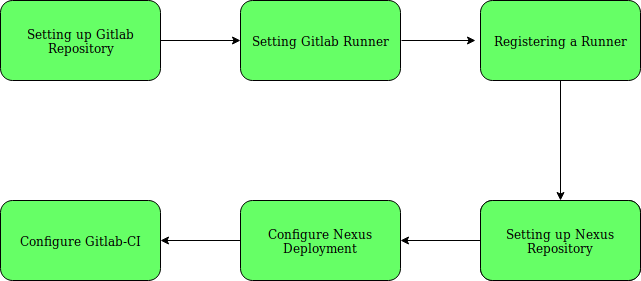
Step-1:  Setting up GitLab Repository. 

I’m using a Spring based code Spring3Hibernate, with a directory structure like below.
$    cd spring3hibernateapp
$    ls
     pom.xml pom.xml~ src

# Now lets start pushing this code to gitlab

$    git remote -v
     origin [email protected]:/spring3hibernateapp.git (fetch)
     origin [email protected]:/spring3hibernateapp.git (push)
# Adding the code to the working directory

$    git add -A
# Committing the code

$    git commit -m "[Master][Add] Adding the code "
# Pushing it to gitlab

$    git push origin master

Step-2:  Install GitLab Runner manually on GNU/Linux

# Simply download one of the binaries for your system:

$    sudo wget -O /usr/local/bin/gitlab-runner https://gitlab-runner-downloads.s3.amazonaws.com/latest/binaries/gitlab-runner-linux-386

# Give it permissions to execute:

$    sudo chmod +x /usr/local/bin/gitlab-runner 

# Optionally, if you want to use Docker, install Docker with:

$    curl -sSL https://get.docker.com/ | sh 

# Create a GitLab CI user:

$    sudo useradd --comment 'GitLab Runner' --create-home gitlab-runner --shell /bin/bash 

# Install and run as service:

$    sudo gitlab-runner install --user=gitlab-runner --working-directory=/home/gitlab-runner
$    sudo gitlab-runner start

Step-3: Registering a Runner

To get the runner configuration you need to move to gitlab > spring3hibernateapp > CI/CD setting > Runners
And get the registration token for runners.

# Run the following command:

$     sudo gitlab-runner register
       Runtime platform                                    arch=amd64 os=linux pid=1742 revision=3afdaba6 version=11.5.0
       Running in system-mode.                             

# Please enter the gitlab-ci coordinator URL (e.g. https://gitlab.com/):

https://gitlab.com/

# Please enter the gitlab-ci token for this runner:

****8kmMfx_RMr****

# Please enter the gitlab-ci description for this runner:

[gitlab-runner]: spring3hibernate

# Please enter the gitlab-ci tags for this runner (comma separated):

build
       Registering runner... succeeded                     runner=ZP3TrPCd

# Please enter the executor: docker, docker-ssh, shell, ssh, virtualbox, docker+machine, parallels, docker-ssh+machine, kubernetes:

docker

# Please enter the default Docker image (e.g. ruby:2.1):

maven       
       Runner registered successfully. Feel free to start it, but if it's running already the config should be automatically reloaded!

# You can also create systemd service in /etc/systemd/system/gitlab-runner.service.

[Unit]
Description=GitLab Runner
After=syslog.target network.target
ConditionFileIsExecutable=/usr/local/bin/gitlab-runner

[Service]
StartLimitInterval=5
StartLimitBurst=10
ExecStart=/usr/local/bin/gitlab-runner "run" "--working-directory" "/home/gitlab-runner" "--config" "/etc/gitlab-runner/config.toml" "--service" "gitlab-runner" "--syslog" "--user" "gitlab-runner"
Restart=always
RestartSec=120

[Install]
WantedBy=multi-user.target

Step-4: Setting up Nexus Repository
You can setup a repository installing the open source version of Nexus you need to visit Nexus OSS and download the TGZ version or the ZIP version.
But to keep it simple, I used docker container for that.
# Install docker

$    curl -sSL https://get.docker.com/ | sh

# Launch a NEXUS container and bind the port

$    docker run -d -p 8081:8081 --name nexus sonatype/nexus:oss

You can access your nexus now on http://:8081/nexus.
And login as admin with password admin123.

Step-5: Configure the NEXUS deployment

Clone your code and enter the repository

$    cd spring3hibernateapp/

# Create a folder called .m2 in the root of your repository

$    mkdir .m2

# Create a file called settings.xml in the .m2 folder

$    touch .m2/settings.xml

# Copy the following content in settings.xml

<settings xsi:schemaLocation="http://maven.apache.org/SETTINGS/1.1.0 http://maven.apache.org/xsd/settings-1.1.0.xsd"
    xmlns="http://maven.apache.org/SETTINGS/1.1.0" xmlns:xsi="http://www.w3.org/2001/XMLSchema-instance">
  
    
      central
      ${env.NEXUS_REPO_USER}
      ${env.NEXUS_REPO_PASS}
    
    
      snapshots
      ${env.NEXUS_REPO_USER}
      ${env.NEXUS_REPO_PASS}


 Username and password will be replaced by the correct values using variables.
# Updating Repository path in pom.xml


     central
     Central
     ${env.NEXUS_REPO_URL}central/
   
 
          snapshots
          Snapshots
          ${env.NEXUS_REPO_URL}snapshots/
        

Step-6: Configure GitLab CI/CD for simple maven deployment.

GitLab CI/CD uses a file in the root of the repo, named, .gitlab-ci.yml, to read the definitions for jobs that will be executed by the configured GitLab Runners.
First of all, remember to set up variables for your deployment. Navigate to your project’s Settings > CI/CD > Variables page and add the following ones (replace them with your current values, of course):
  • NEXUS_REPO_URL: http://:8081/nexus/content/repositories/ 
  • NEXUS_REPO_USER: admin
  • NEXUS_REPO_PASS: admin123

Now it’s time to define jobs in .gitlab-ci.yml and push it to the repo:

image: maven

variables:
  MAVEN_CLI_OPTS: "-s .m2/settings.xml --batch-mode"
  MAVEN_OPTS: "-Dmaven.repo.local=.m2/repository"

cache:
  paths:
    - .m2/repository/
    - target/

stages:
  - build
  - test
  - package 
  - deploy

codebuild:
  tags:
    - build      
  stage: build
  script: 
    - mvn compile

codetest:
  tags:
    - build
  stage: test
  script:
    - mvn $MAVEN_CLI_OPTS test
    - echo "The code has been tested"

Codepackage:
  tags:
    - build
  stage: package
  script:
    - mvn $MAVEN_CLI_OPTS package -Dmaven.test.skip=true
    - echo "Packaging the code"
  artifacts:
    paths:
      - target/*.war
  only:
    - master  

Codedeploy:
  tags:
    - build
  stage: deploy
  script:
    - mvn $MAVEN_CLI_OPTS deploy -Dmaven.test.skip=true
    - echo "installing the package in local repository"
  only:
    - master

Now add the changes, commit them and push them to the remote repository on gitlab. A pipeline will be triggered with respect to your commit. And if everything goes well our mission will be accomplished.
Note: You might get some issues with maven plugins, which will need to managed in pom.xml, depending upon the environment.
In this blog, we covered the basic steps to use a Nexus Maven repository to automatically publish and consume artifacts.