Git-Submodule

Rocket Science has always fascinated me, but one thing which totally blows my mind is the concept of modules aka. modular rockets. The literal definition of modules statesA modular rocket is a type of multistage rocket which features components that can be interchanged for specific mission requirements.” In simple terms, you can say that the Super Rocket depends upon those Submodules to get the things done.
Similarly is the case in the Software world, where super projects have multiple dependencies on other objects. And if we talk about managing projects Git can’t be ignored, Moreover Git has a concept of Submodules which is slightly inspired by the amazing rocket science of modules.

Hour of Need

Being a DevOps Specialist we need to do provisioning of the Infrastructure of our clients which is sometimes common for most of the clients. We decided to Automate it, which a DevOps is habitual of. Hence, Opstree Solutions initiated an Internal project named OSM. In which we create Ansible Roles of different opensource software with the contribution of each member of our organization. So that those roles can be used in the provisioning of the client’s infrastructure.
This makes the client projects dependent on our OSM. Which creates a problem statement to manage all dependencies which might get updated over the period. And to do that there is a lot of copy paste, deleting the repository and cloning them again to get the updated version, which is itself a hair-pulling task and obviously not the best practice.
Here comes the git-submodule as a modular rocket to take our Super Rocket to its destination.

Let’s Liftoff with Git-Submodules

A submodule is a repository embedded inside another repository. The submodule has its own history; the repository it is embedded in is called a superproject.

In simple terms, a submodule is a git repository inside a Superproject’s git repository, which has its own .git folder which contains all the information that is necessary for your project in version control and all the information about commits, remote repository address etc. It is like an attached repository inside your main repository, which can be used to reuse a code inside it as a “module“.
Let’s get a practical use case of submodules.
We have a client let’s call it “Armstrong” who needs few of our ansible roles of OSM for their provisioning of Infrastructure. Let’s have a look at their git repository below.

$    cd provisioner
$    ls -a
     .  ..  ansible  .git  inventory  jenkins  playbooks  README.md  roles
$    cd roles
$    ls -a
     apache  java   nginx  redis  tomcat
We can see in this Armstrong’s provisioner repository(a git repository) depends upon five roles which are available in OSM’s repository to help Armstrong to provision their infrastructure. So we’ll add submodules osm_java and others.

$    cd java
$    git submodule add -b armstrong git@gitlab.com:oosm/osm_java.git osm_java
     Cloning into './provisioner/roles/java/osm_java'...
     remote: Enumerating objects: 23, done.
     remote: Counting objects: 100% (23/23), done.
     remote: Compressing objects: 100% (17/17), done.
     remote: Total 23 (delta 3), reused 0 (delta 0)
     Receiving objects: 100% (23/23), done.
     Resolving deltas: 100% (3/3), done.

With the above command, we are adding a submodule named osm_java whose URL is git@gitlab.com:oosm/osm_java.git and branch is armstrong. The name of the branch is coined armstrong because to keep the configuration of each of our client’s requirement isolated, we created individual branches of OSM’s repositories on the basis of client name.
Now if take a look at our superproject provisioner we can see a file named .gitmodules which has the information regarding the submodules.

$    cd provisioner
$    ls -a
     .  ..  ansible  .git  .gitmodules  inventory  jenkins  playbooks  README.md  roles
$    cat .gitmodules
     [submodule "roles/java/osm_java"]
     path = roles/java/osm_java
     url = git@gitlab.com:oosm/osm_java.git
     branch = armstrong

Here you can clearly see that a submodule osm_java has been attached to the superproject provisioner.

What if there was no submodule?

If that was a case, then we need to clone the repository from osm and paste it to the provisioner then add & commit it to the provisioner phew….. that would also have worked.
But what if there is some update has been made in the osm_java which have to be used in provisioner, we can not easily sync with the OSM. We would need to delete osm_java, again clone, copy, and paste in the provisioner which sounds clumsy and not a best way to automate the process.
Being a osm_java as a submodule we can easily update that this dependency without messing up the things.

$    git submodule status
     -d3bf24ff3335d8095e1f6a82b0a0a78a5baa5fda roles/java/osm_java
$    git submodule update --remote
     remote: Enumerating objects: 3, done.
     remote: Counting objects: 100% (3/3), done.
     remote: Total 2 (delta 0), reused 2 (delta 0), pack-reused 0
     Unpacking objects: 100% (2/2), done.
     From git@gitlab.com:oosm/osm_java.git     0564d78..04ca88b  armstrong     -> origin/armstrong
     Submodule path 'roles/java/osm_java': checked out '04ca88b1561237854f3eb361260c07824c453086'

By using the above update command we have successfully updated the submodule which actually pulled the changes from OSM’s origin armstrong branch.

What have we learned? 

In this blog post, we learned to make use of git-submodules to keep our dependent repositories updated with our super project, and not getting our hands dirty with gullible copy and paste.
Kick-off those practices which might ruin the fun, sit back and enjoy the automation.

Referred links:
Image: google.com
Documentation: https://git-scm.com/docs/gitsubmodules

Setting up MySQL Monitoring with Prometheus

One thing that I love about Prometheus is that it has a multitude of Integration with different services, both officially supported and the third party supported.
Let’s see how can we monitor MySQL with Prometheus.Those who are the starter or new to Prometheus can refer to our this blog.MySQL is a popular opensource relational database system, which exposed a large number of metrics for monitoring but not in Prometheus format. For capturing that data in Prometheus format we use mysqld_exporter.

I am assuming that you have already setup MySQL Server.

Configuration changes in MySQL

For setting up MySQL monitoring, we need a user with reading access on all databases which we can achieve by an existing user also but the good practice is that we should always create a new user in the database for new service.
CREATE USER 'mysqld_exporter'@'localhost' IDENTIFIED BY 'password' WITH MAX_USER_CONNECTIONS 3;
After creating a user we simply have to provide permission to that user.
GRANT PROCESS, REPLICATION CLIENT, SELECT ON *.* TO 'mysqld_exporter'@'localhost';

Setting up MySQL Exporter

Download the mysqld_exporter from GitHub. We are downloading the 0.11.0 version as per latest release now, change the version in future if you want to download the latest version.
 
wget https://github.com/prometheus/mysqld_exporter/releases/download/v0.11.0/mysqld_exporter-0.11.0.linux-amd64.tar.gz
 
Then simply extract the tar file and move the binary file at the appropriate location.
tar -xvf mysqld_exporter-0.11.0.linux-amd64.tar.gz
mv mysqld_exporter /usr/bin/

Although we can execute the binary simply, but the best practice is to create service for every Third Party binary application. Also, we are assuming that systemd is already installed in your system. If you are using init then you have to create init service for the exporter.

useradd mysqld_exporter
vim /etc/systemd/system/mysqld_exporter.service
[Unit]
Description=MySQL Exporter Service
Wants=network.target
After=network.target

[Service]
User=mysqld_exporter
Group=mysqld_exporter
Environment="DATA_SOURCE_NAME=mysqld_exporter:password@unix(/var/run/mysqd/mysqld.sock)"
Type=simple
ExecStart=/usr/bin/mysqld_exporter
Restart=always

[Install]
WantedBy=multi-user.target
You may need to adjust the socket location of Unix according to your environment
If you go and visit the http://localhost.com:9104/metrics, you will be able to see them.

Prometheus Configurations

For scrapping metrics from mysqld_exporter in Prometheus we have to make some configuration changes in Prometheus, the changes are not fancy, we just have to add another job for mysqld_exporter, like this:-
vim /etc/prometheus/prometheus.yml
  - job_name: 'mysqld_exporter'
    static_configs:
      - targets:
          - :9104

After the configuration changes, we just have to restart the Prometheus server.

systemctl restart prometheus

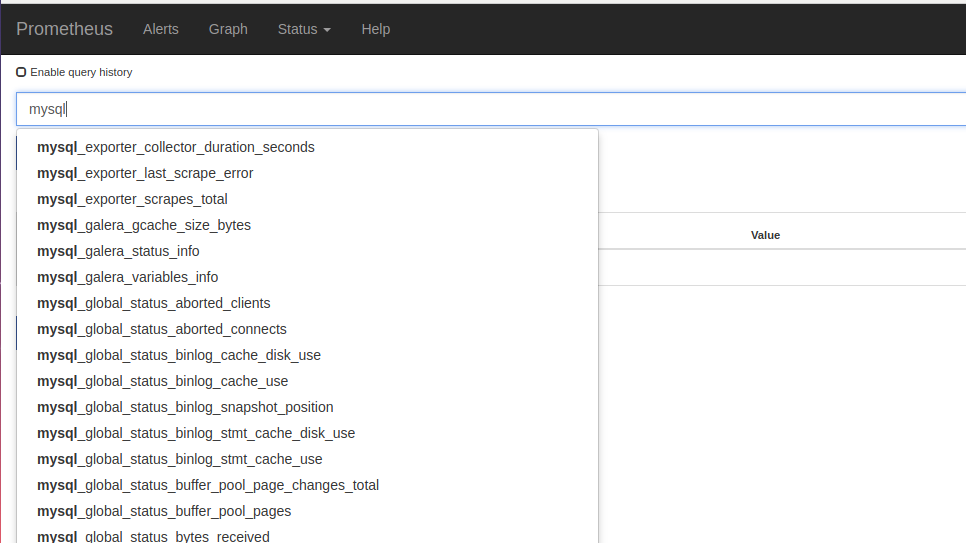
Then, if you go to the Prometheus server you can find the MySQL metrics there like this:-

So In this blog, we have covered MySQL configuration changes for Prometheus, mysqld_exporter setup and Prometheus configuration changes.
In the next part, we will discuss how to create a visually impressive dashboard in Grafana for better visualization of MySQL metrics. See you soon… 🙂

Gitlab-CI with Nexus

Recently I was asked to set up a CI- Pipeline for a Spring based application.
I said “piece of cake”, as I have already worked on jenkins pipeline, and knew about maven so that won’t be a problem. But there was a hitch, “pipeline of Gitlab CI“. I said “no problem, I’ll learn about it” with a Ninja Spirit.
So for starters what is gitlab-ci pipeline. For those who have already work on Jenkins and maven, they know about the CI workflow of  Building a code , testing the code, packaging, and deploy it using maven. You can add other goals too, depending upon the requirement.
The CI process in GitLab CI is defined within a file in the code repository itself using a YAML configuration syntax.
The work is then dispatched to machines called runners, which are easy to set up and can be provisioned on many different operating systems. When configuring runners, you can choose between different executors like Docker, shell, VirtualBox, or Kubernetes to determine how the tasks are carried out.

What we are going to do?
We will be establishing a CI/CD pipeline using gitlab-ci and deploying artifacts to NEXUS Repository.

Resources Used:

  1. Gitlab server, I’m using gitlab to host my code.   
  2. Runner server, It could be vagrant or an ec2 instance. 
  3. Nexus Server, It could be vagrant or an ec2 instance.

     Before going further, let’s get aware of few terminologies. 

  • Artifacts: Objects created by a build process, Usually project jars, library jar. These can include use cases, class diagrams, requirements, and design documents.
  • Maven Repository(NEXUS): A repository is a directory where all the project jars, library jar, plugins or any other project specific artifacts are stored and can be used by Maven easily, here we are going to use NEXUS as a central Repository.
  • CI: A software development practice in which you build and test software every time a developer pushes code to the application, and it happens several times a day.
  • Gitlab-runner: GitLab Runner is the open source project that is used to run your jobs and send the results back to GitLab. It is used in conjunction with GitLab CI, the open-source continuous integration service included with GitLab that coordinates the jobs.
  • .gitlab-ci.yml: The YAML file defines a set of jobs with constraints stating when they should be run. You can specify an unlimited number of jobs which are defined as top-level elements with an arbitrary name and always have to contain at least the script clause. Whenever you push a commit, a pipeline will be triggered with respect to that commit.

Strategy to Setup Pipeline

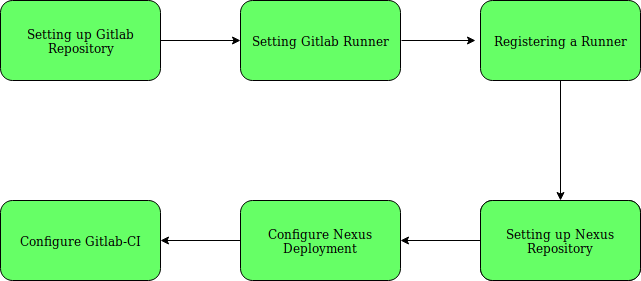
Step-1:  Setting up GitLab Repository. 

I’m using a Spring based code Spring3Hibernate, with a directory structure like below.
$    cd spring3hibernateapp
$    ls
     pom.xml pom.xml~ src

# Now lets start pushing this code to gitlab

$    git remote -v
     origin git@gitlab.com:/spring3hibernateapp.git (fetch)
     origin git@gitlab.com:/spring3hibernateapp.git (push)
# Adding the code to the working directory

$    git add -A
# Committing the code

$    git commit -m "[Master][Add] Adding the code "
# Pushing it to gitlab

$    git push origin master

Step-2:  Install GitLab Runner manually on GNU/Linux

# Simply download one of the binaries for your system:

$    sudo wget -O /usr/local/bin/gitlab-runner https://gitlab-runner-downloads.s3.amazonaws.com/latest/binaries/gitlab-runner-linux-386

# Give it permissions to execute:

$    sudo chmod +x /usr/local/bin/gitlab-runner 

# Optionally, if you want to use Docker, install Docker with:

$    curl -sSL https://get.docker.com/ | sh 

# Create a GitLab CI user:

$    sudo useradd --comment 'GitLab Runner' --create-home gitlab-runner --shell /bin/bash 

# Install and run as service:

$    sudo gitlab-runner install --user=gitlab-runner --working-directory=/home/gitlab-runner
$    sudo gitlab-runner start

Step-3: Registering a Runner

To get the runner configuration you need to move to gitlab > spring3hibernateapp > CI/CD setting > Runners
And get the registration token for runners.

# Run the following command:

$     sudo gitlab-runner register
       Runtime platform                                    arch=amd64 os=linux pid=1742 revision=3afdaba6 version=11.5.0
       Running in system-mode.                             

# Please enter the gitlab-ci coordinator URL (e.g. https://gitlab.com/):

https://gitlab.com/

# Please enter the gitlab-ci token for this runner:

****8kmMfx_RMr****

# Please enter the gitlab-ci description for this runner:

[gitlab-runner]: spring3hibernate

# Please enter the gitlab-ci tags for this runner (comma separated):

build
       Registering runner... succeeded                     runner=ZP3TrPCd

# Please enter the executor: docker, docker-ssh, shell, ssh, virtualbox, docker+machine, parallels, docker-ssh+machine, kubernetes:

docker

# Please enter the default Docker image (e.g. ruby:2.1):

maven       
       Runner registered successfully. Feel free to start it, but if it's running already the config should be automatically reloaded!

# You can also create systemd service in /etc/systemd/system/gitlab-runner.service.

[Unit]
Description=GitLab Runner
After=syslog.target network.target
ConditionFileIsExecutable=/usr/local/bin/gitlab-runner

[Service]
StartLimitInterval=5
StartLimitBurst=10
ExecStart=/usr/local/bin/gitlab-runner "run" "--working-directory" "/home/gitlab-runner" "--config" "/etc/gitlab-runner/config.toml" "--service" "gitlab-runner" "--syslog" "--user" "gitlab-runner"
Restart=always
RestartSec=120

[Install]
WantedBy=multi-user.target

Step-4: Setting up Nexus Repository
You can setup a repository installing the open source version of Nexus you need to visit Nexus OSS and download the TGZ version or the ZIP version.
But to keep it simple, I used docker container for that.
# Install docker

$    curl -sSL https://get.docker.com/ | sh

# Launch a NEXUS container and bind the port

$    docker run -d -p 8081:8081 --name nexus sonatype/nexus:oss

You can access your nexus now on http://:8081/nexus.
And login as admin with password admin123.

Step-5: Configure the NEXUS deployment

Clone your code and enter the repository

$    cd spring3hibernateapp/

# Create a folder called .m2 in the root of your repository

$    mkdir .m2

# Create a file called settings.xml in the .m2 folder

$    touch .m2/settings.xml

# Copy the following content in settings.xml

<settings xsi:schemaLocation="http://maven.apache.org/SETTINGS/1.1.0 http://maven.apache.org/xsd/settings-1.1.0.xsd"
    xmlns="http://maven.apache.org/SETTINGS/1.1.0" xmlns:xsi="http://www.w3.org/2001/XMLSchema-instance">
  
    
      central
      ${env.NEXUS_REPO_USER}
      ${env.NEXUS_REPO_PASS}
    
    
      snapshots
      ${env.NEXUS_REPO_USER}
      ${env.NEXUS_REPO_PASS}


 Username and password will be replaced by the correct values using variables.
# Updating Repository path in pom.xml


     central
     Central
     ${env.NEXUS_REPO_URL}central/
   
 
          snapshots
          Snapshots
          ${env.NEXUS_REPO_URL}snapshots/
        

Step-6: Configure GitLab CI/CD for simple maven deployment.

GitLab CI/CD uses a file in the root of the repo, named, .gitlab-ci.yml, to read the definitions for jobs that will be executed by the configured GitLab Runners.
First of all, remember to set up variables for your deployment. Navigate to your project’s Settings > CI/CD > Variables page and add the following ones (replace them with your current values, of course):
  • NEXUS_REPO_URL: http://:8081/nexus/content/repositories/ 
  • NEXUS_REPO_USER: admin
  • NEXUS_REPO_PASS: admin123

Now it’s time to define jobs in .gitlab-ci.yml and push it to the repo:

image: maven

variables:
  MAVEN_CLI_OPTS: "-s .m2/settings.xml --batch-mode"
  MAVEN_OPTS: "-Dmaven.repo.local=.m2/repository"

cache:
  paths:
    - .m2/repository/
    - target/

stages:
  - build
  - test
  - package 
  - deploy

codebuild:
  tags:
    - build      
  stage: build
  script: 
    - mvn compile

codetest:
  tags:
    - build
  stage: test
  script:
    - mvn $MAVEN_CLI_OPTS test
    - echo "The code has been tested"

Codepackage:
  tags:
    - build
  stage: package
  script:
    - mvn $MAVEN_CLI_OPTS package -Dmaven.test.skip=true
    - echo "Packaging the code"
  artifacts:
    paths:
      - target/*.war
  only:
    - master  

Codedeploy:
  tags:
    - build
  stage: deploy
  script:
    - mvn $MAVEN_CLI_OPTS deploy -Dmaven.test.skip=true
    - echo "installing the package in local repository"
  only:
    - master

Now add the changes, commit them and push them to the remote repository on gitlab. A pipeline will be triggered with respect to your commit. And if everything goes well our mission will be accomplished.
Note: You might get some issues with maven plugins, which will need to managed in pom.xml, depending upon the environment.
In this blog, we covered the basic steps to use a Nexus Maven repository to automatically publish and consume artifacts.

Linux Namespaces – Part 1

Overview

First of all I would like to give credit to Docker which motivated me to write this blog, I’ve been using docker for more then 6 months but I always wondered how things are happening behind the scene. So I started in depth learning of Docker and here I am talking about Namespace which is the core concept used by Docker.

Before talking about Namespaces in Linux, it is very important to know that what namespaces actually is?

Let’s take an example, We have two people with the same first name Abhishek Dubey and Abhishek Rawat but we can differentiate them on the basis of their surname Dubey and Rawat. So you can think surname as a namespace.

In Linux, namespaces are used to provide isolation for objects from other objects. So that anything will happen in namespaces will remain in that particular namespace and doesn’t affect other objects of other namespaces. For example:- we can have the same type of objects in different namespaces as they are isolated from each other.

In short, due to isolation, namespaces limits how much we can see.

Now you would be having a good conceptual idea of Namespace let’s try to understand them in the context of Linux Operating System.

Linux Namespaces

Linux namespace forms a single hierarchy, with all processes and that is init. Usually, privileged processes and services can trace or kill other processes. Linux namespaces provide the functionality to have many hierarchies of processes with their own “subtrees”, such that, processes in one subtree can’t access or even know those of another.
A namespace wraps a global system resource (For ex:- PID) using the abstraction that makes it appear to processes within the namespace that they have, using their own isolated instance of the said resource.

In the above figure, we have a process named 1 which is the first PID and from 1 parent process there are new PIDs are generated just like a tree. If you see the 6th PID in which we are creating a subtree, there actually we are creating a different namespace. In the new namespace, 6th PID will be its first and parent PID. So the child processes of 6th PID cannot see the parent process or namespace but the parent process can see the child PIDs of the subtree.

Let’s take PID namespace as an example to understand it more clearly. Without namespace, all processes descend(move downwards) hierarchically from First PID i.e. init. If we create PID namespace and run a process in it, the process becomes the First PID in that namespace. In this case, we wrap a global system resource(PID). The process that creates the namespace still remains in the parent namespace but makes it child for the root of the new process tree.
This means that the processes within the new namespace cannot see the parent process but the parent process can see the child namespace process. 
I hope you have got a clear understanding of Namespaces concepts & what purpose they serve in a Linux OS. The next blog of this series will talk about how we use namespace to restrict usage of system resources such as network, mounts, cgroups…

    Forward and Reverse Proxy

    Overview

    Before talking about forward proxy and reverse proxy let’s talk about what is the meaning of proxy.
    Basically proxy means someone or something is acting on behalf of someone.
    In the technical realm, we are talking about one server is acting behalf of the other servers.

    In this blog, we will talk about web proxies. So basically we have two types of web proxies:-

    • Forward Proxy
    • Reverse Proxy
    The forward proxy is used by the client, for example:- web browser, whereas reverse proxy is used by the server such as web server.

    Forward Proxy

    In Forward Proxy, proxy retrieves data from another website on the behalf of original requestee. For example:- If an IP is blocked for visiting a particular website then the person(client) can use the forward proxy to hide the real IP of the client and can visit the website easily.
    Let’s take another example to understand it more clearly. For example, we have 3 server
    Client                      -> Your computer from which you are sending the request
    Proxy Site               -> The proxy server, proxy.example.com
    Main Web server    -> The website you want to see
    Normally connection can happen like this 
    In the forward proxy, the connection will happen like this
    So here the proxy client is talking to the main web server on the behalf of the client.
    The forward proxy also acts as a cache server. For example:- If the content is downloading multiple times the proxy can cache the content on the server so next time when another server is downloading the same content, the proxy will send the content that is previously stored on the server to another server. 

     Reverse Proxy

    The reverse proxy is used by the server to maintain load and to achieve high availability. A website may have multiple servers behind the reverse proxy. The reverse proxy takes requests from the client and forwards these requests to the web servers. Some tools for reverse proxy are Nginx, HaProxy.
    So let’s take the similar example as the forward proxy
    Client                      -> Your computer from which you are sending the request
    Proxy Site               -> The proxy server, proxy.example.com
    Main Web server    -> The website you want to see
    Here it is better to restrict the direct access to the Main Web Server and force the requests or requestors to go through Proxy Server first. So data is being retrieved by Proxy Server on the behalf of Client.
    • So the difference between Forward Proxy and Reverse Proxy is that in Reverse Proxy the user doesn’t know he is accessing Main Web Server, because of the user only communicate with Proxy Server.
    • The Main Web Server is invisible for the user and only Reverse Proxy Server is visible. The user thinks that he is communicating with Main Web Server but actually Reverse Proxy Server is forwarding the requests to the Main Web Server.