Redis Zero Downtime Cluster Migration

A few days back I came across a problem of migrating a Redis Master-Slave setup to Redis Cluster. Initially, I thought it to be a piece of cake since I have been already working on Redis, but there was a hitch, “Zero Downtime Migration”. Also, the redis was getting used as a database, not as Caching Server. So I started to think of different ways for migrating Redis Master-Slave setup to Redis Cluster and finally, I came up with an idea of migration.
Before we jump to migration, I want to give an overview regarding when we can use Redis as a database, and how to choose which setup we should go with Master-Slave or Cluster mode.

Redis as a Database

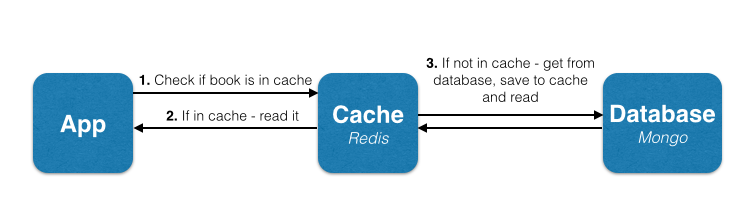
Sometimes getting data from disks can be time-consuming. In order to increase the performance, we can put the requests those either need to be served first or rapidly in Redis memory and then the Redis service there will keep rest of the data in the main database. So the whole architecture will look like this:-

Image result for redis as database

Redis Master-Slave Replication

Beginning with the explanation about Redis Master-Slave. In this phenomenon, Redis can replicate data to any number of nodes. ie. it lets the slave have the exact copy of their master. This helps in performance optimizations.

I bet now you can use Redis as a Database.

Redis Cluster

A Redis cluster is simply a data sharding strategy. It automatically partitions data across multiple Redis nodes. It is an advanced feature of Redis which achieves distributed storage and prevents a single point of failure.

Replication vs Sharding

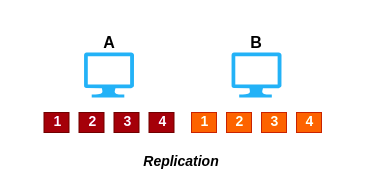
Replication is also known as mirroring of data. In replication, all the data get copied from the master node to the slave node.

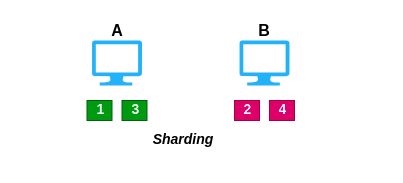
Sharding is also known as partitioning. It splits up the data by the key to multiple nodes.

As shown in the above figure,  all keys 1, 2, 3, 4 are getting stored on both machine A and B.

In sharding, the keys are getting distributed across both machine A and B. That is, the machine A will hold the 1, 3 key and machine B will hold 2, 4 key.

I guess now everyone has a good idea about Redis working mechanism. So let’s start discussing the migration of Redis.

Migration

Unfortunately, redis doesn’t have a direct way of migrating data from Redis-Master Slave to Redis Cluster. Let me explain it to you why?

We can start Redis service in either cluster mode or standalone mode. Now your solution would be that we can change the Redis Configuration value on-fly(means without restarting the Redis Service) with redis-cli. Yes, you are absolutely correct we can change the Redis configuration on-fly but unfortunately, Redis Mode(cluster or standalone) can’t be decided on-fly, for that we have to restart the service.

I guess now you guys will understand my situation :).

For migration, there are multiple ways of doing it. However, we needed to migrate the data without downtime or any interruptions to the service.

We decided the best course of action was a steps process:-

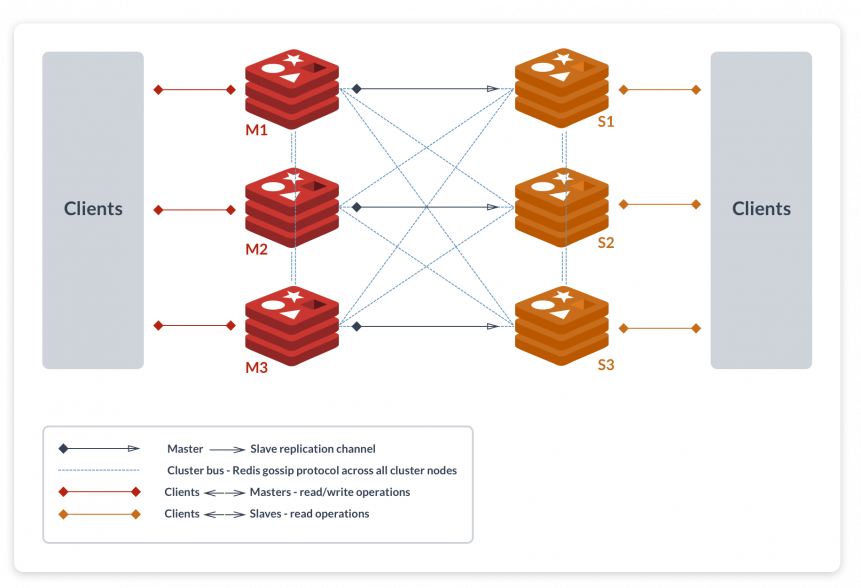
  • Firstly we needed to create a different Redis Cluster environment. The architecture of the cluster environment was something like
  • The next step was to update all the services (application) to send all the write operations to both servers(cluster and master-slave). The read commands (GET) will still go to the old setup.
  • But still, we don’t have the guarantee that all non-expirable data would make it over. So we can run a step to iterate through all of the keys and DUMP/RESTORE them into the new setup. 
  • Once the new Redis Server looks good we could make the appropriate changes to the application to point solely to the new Redis Server.

I know the all steps are easy except the second step. Fortunately, redis provides a method of key scanning through which we can scan all the key and take a dump of it and then restore it in the new Redis Server.
To achieve this I have created a python utility in which you have to define the connection details of your old Redis Server and new Redis Server.

You can find the utility here.

https://github.com/opstree/redis-migration

I have provided the detail information on using this utility in the README file itself. I guess my experience will help you guys while redis migration.

Replication or Clustering?

I know most people have a query that when should we use replication and when clustering :).

If you have more data than RAM in a single machine, use Redis Cluster to shard the data across multiple databases.

If you have less data than RAM in a machine, set up a master-slave replication with sentinel in front to handle the fai-lover.

The main idea of writing this blog was to spread information about Replication and Sharding mechanism and how to choose the right one and if mistakenly you have chosen the wrong one, how to migrate it from :).

There are multiple factors yet to be explored to enhance the flow of migration if you find that before I do, please let me know to improve this blog.

I hope I explained everything and clear enough to understand.

Thanks for reading. I’d really appreciate any and all feedback, please leave your comment below if you guys have some feedbacks.

Happy Coding!!!!

Initially the script reference from taken here
https://gist.github.com/aniketsupertramp/1ede2071aea3257f9bb6be1d766a88f

ANSIBLE DYNAMIC INVENTORY IS IT SO HARD?

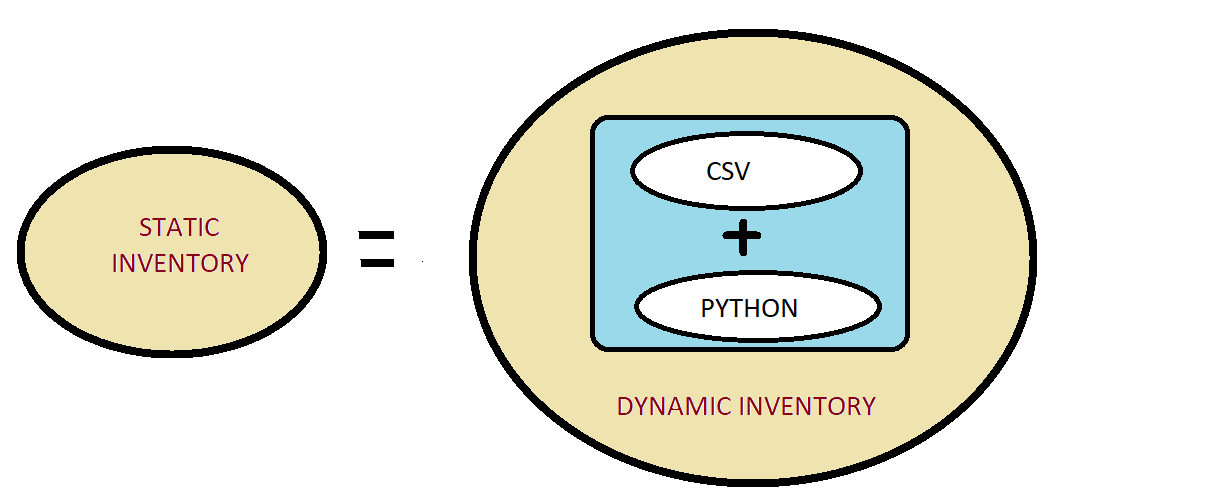
Thinking what the above diagram is all about. Once you are done with this blog, you will know exactly what it is. Till one month ago, I was of the opinion that Dynamic Inventory is a cool way of managing your AWS infrastructure as you don’t have to track your servers you just have to apply proper tags and Ansible Dynamic Inventory magically manages the inventory for you. Having said that I was not really comfortable using dynamic inventory as it was a black box I tried going through the Python script which was very cryptic & difficult to understand. If you are of the same opinion, then this blog is worth reading as I will try to demystify how things work in Dynamic Inventory and how you can implement your own Dynamic inventory using a very simple python script.

You can refer below article if you want to implement Dynamic inventory for your AWS infrastructure.

https://aws.amazon.com/blogs/apn/getting-started-with-ansible-and-dynamic-amazon-ec2-inventory-management/

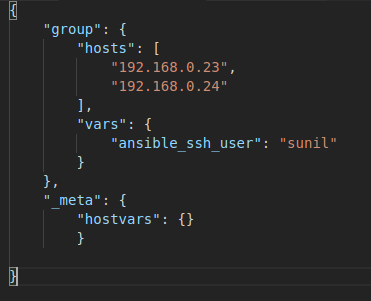
Now coming to what is dynamic inventory and how you can create one. You have to understand what Ansible accepts as an inventory file. Ansible expects a JSON in the below format. Below is the screenshot showing the bare minimum content which is required by Ansible. Ansible expects a dictionary of groups (each group having a list of group>hosts, and group variables in the group>vars dictionary), and a _meta dictionary that stores host variables for all hosts individually (inside a hostvars dictionary).

So as long as you can write a script which generates output in the above JSON format. Ansible won’t give you any trouble. So let’s start creating our own custom inventory.

I have created a python script customdynamicinventory.py which reads the data from input.csv and generates the JSON as mentioned above. For simplicity, I have kept my input.csv as simple as possible. You can find the code here:-

https://github.com/SUNIL23891YADAV/dynamicinventory.git

If you want to test it just clone the code and replace the IP, user and key details as per your environment in the input.csv file. To make sure that our python script is generating the output in standard JSON format as expected by Ansible. You can run ./customdynamicinventory.py –list
And it will generate the output in standard JSON format as shown in below screenshot.


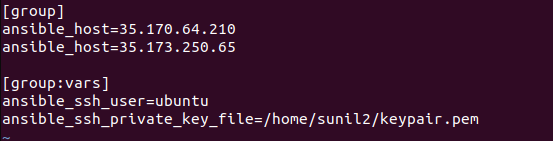
If you want to check how the static inventory file would have looked for the above scenario. You can refer to the below screenshot. It would have served the same purpose as the above dynamic inventory

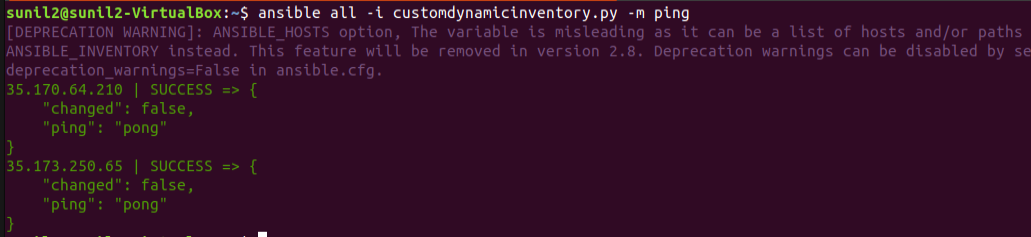
Now to make sure your custom inventory is working fine. You can run

ansible all -i  customdynamicinventory.py -m ping

It will try to ping all the hosts mentioned in the CSV. Let’s check it

See it is working, that’s how easy it is.

Instead of a static CSV file, we can have a database where all the hosts and related details are getting updated dynamically. Then Ansible dynamic inventory script can use this database as an inventory source as long as it returns a JSON structure, mentioned in the first screenshot.

Kafka Manager On Kubernetes


                                kafka-manager-on-kubernetes


We likely know Kafka as a durable, scalable and fault-tolerant publish-subscribe messaging system. Recently I got a requirement to efficiently monitor and manage our Kafka cluster, and I started looking for different solutions. Kafka-manager is an open source tool introduced by Yahoo to manage and monitor the Apache Kafka cluster via UI.

Before I share my experience of configuring Kafka manager on Kubernetes, let’s go through its considerable features
 

As per their documentation on github below are the major features: 

Clusters:
 
  • Manage multiple clusters.
  • Easy inspection of the cluster state.

Brokers:

  • Run preferred replica election.
  • Generate partition assignments with the option to select brokers to use
  • Run reassignment of a partition (based on generated assignments)

Topics:

  • Create a topic with optional topic configs (0.8.1.1 has different configs than 0.8.2+)
  • Delete topic (only supported on 0.8.2+ and remember set delete.topic.enable=true in broker config)
  • The topic list now indicates topics marked for deletion (only supported on 0.8.2+)
  • Batch generate partition assignments for multiple topics with the option to select brokers to use
  • Batch run reassignment of partition for multiple topics
  • Add partitions to an existing topic
  • Update config for an existing topic

Metrics:

  • Optionally filter out consumers that do not have ids/ owners/ & offsets/ directories in zookeeper.
  • Optionally enable JMX polling for broker level and topic level metrics.

Prerequisites of Kafka Manager:

We should have a running Apache Kafka with Apache Zookeeper.

 
  • Apache Zookeeper
  • Apache Kafka

Deployment on Kubernetes: 

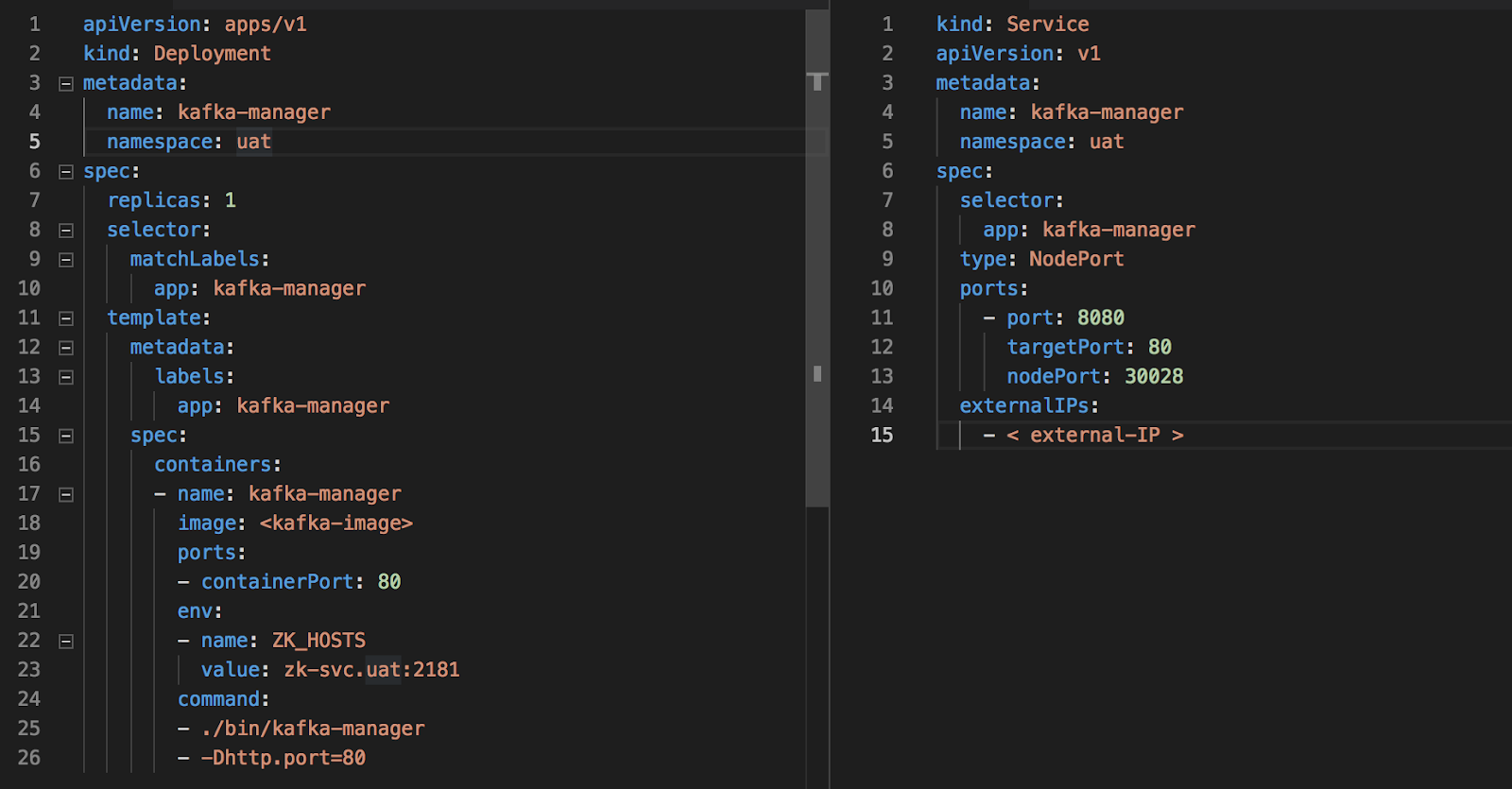
To deploy Kafka Manager on Kubernetes, we need to create deployment and service file as given below.
 
You can find these sample file at https://github.com/vishant07/kafka-manager

After deployment, we should able to access Kafka manager service via http://:8080

We have two files to Kafka-manager-service.yaml and kafka-manager.yaml to achieve above-mentioned setup. Let’s have a brief description of the different attributes used in these files. 

Deployment configuration file: 


namespace: provide a namespace to isolate application within Kubernetes.

replicas: number of containers to spun up.
image: provide the path of docker image to be used.
containerPorts: on which port you want to run your application.
environment: “ZK_HOSTS” provide the address of already running zookeeper.

Service configuration file:

This file contains the details to create Kafka manager service ok Kubernetes. For demo purpose, I have used the node port method to expose my service. 

As we are using Kubernetes for our underlying platform of deployment it is recommended not to use external IP to access any service. Either we should go with LoadBalancer or use ingress (recommended method) rather than exposing all microservices.  


To configure ingress, please take a note from Kubernetes Ingress.


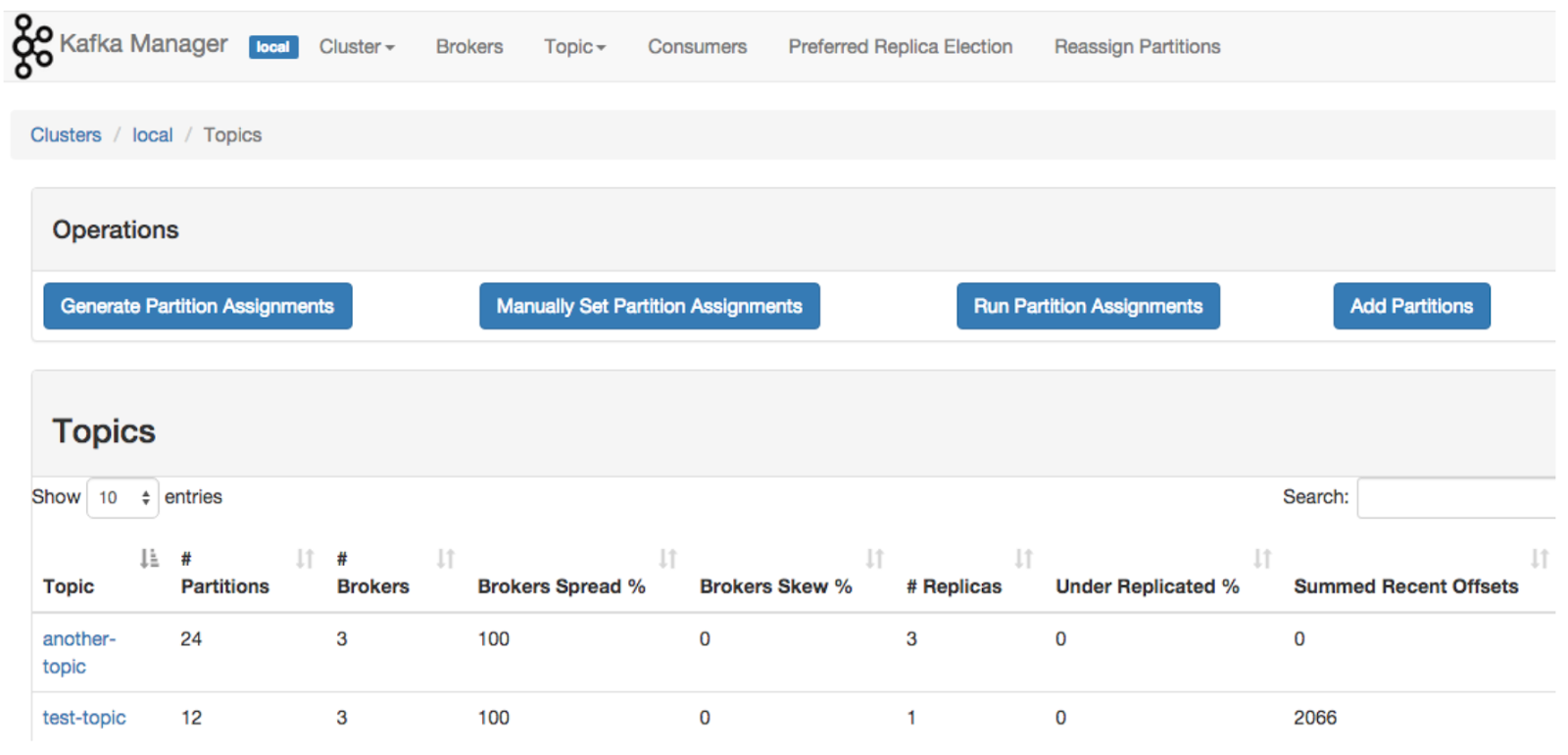
Once we are able to access Kafka manager we can see similar screens. 
 

Cluster Management

Topic List


Major Issues

 
To get broker level and topic level metrics we have to enable JMX polling.
 
So what we will generally do is to set the environment variable in the kubernetes manifest but somehow it is not working most of the times.


To resolve this you need to update JMX settings while creating your docker image as given as below.

vim /opt/kafka/bin/kafka-run-class.sh


if [ -z "$KAFKA_JMX_OPTS" ]; then
#KAFKA_JMX_OPTS="-Dcom.sun.management.jmxremote -Dcom.sun.management.jmxremote.authenticate=false  -Dcom.sun.management.jmxremote.ssl=false "

KAFKA_JMX_OPTS="-Dcom.sun.management.jmxremote=true -Dcom.sun.management.jmxremote.authenticate=false -Dcom.sun.management.jmxremote.ssl=false -Djava.rmi.server.hostname=$HOSTNAME -Djava.net.preferIPv4Stack=true"

fi
 

Conclusion

 
Deploying Kafka manager on Kubernetes encourages the easy setup, provides efficient manageability and all-time availability. Managing Kafka cluster over CLI becomes a tedious task and here Kafka manager helps to focus more on the use of Kafka rather than investing our time to configure and manage it.  It becomes useful at Enterprise Level, where system engineers can manage multiple Kafka clusters easily via UI.
Reference links:
Image: google image search
Documentation: https://github.com/yahoo/kafka-manager


Redis Best Practices and Performance Tuning for High-Speed Systems

In modern high traffic systems, Redis is one of the fastest in-memory data stores, but without proper tuning, even Redis can start showing performance bottlenecks.

The solution? Performance tuning and configuration optimization.

This guide covers the most important Redis performance tuning practices every DevOps engineer, SRE, or backend developer must follow.

One of the thing that I love about my organization is that you don’t have to do the same repetitive work, you will always get the chance to explore some new technologies. The same chance came across to me a few days back when one of our clients was facing issue with Redis.
They were using the Redis Cluster with Sentinel for which they were facing issue regarding performance, whenever the connection request was high the Redis Cluster was not able to bear the load.
Since they were using a decent configuration of the server in terms of CPU and Memory but the result was the same. So now what????
The Answer was to tune the performance. Continue reading “Redis Best Practices and Performance Tuning for High-Speed Systems”

Resolving Segmentation Fault (“Core dumped”) in Ubuntu

A Segmentation Fault  is a specific error triggered by the operating system’s memory protection system. It happens when a program tries to access a memory area it’s not permitted to, or when it attempts to use that memory incorrectly, like trying to write to read-only sections.

The phrase “Core dumped” indicates that when the crash occurred, the operating system saved a full snapshot of the program’s memory (known as a “core dump”) to a file on the disk. This file is crucial for debugging because it contains the exact state of the program at the moment it failed, including details like the call stack, variable values, and memory mappings.

Why Does “Segmentation fault (core dumped)” Happen?

Here are some frequent culprits:

  • Crashing binaries when upgrading your system
  • Programs attempting to access invalid memory locations
  • Outdated or broken software packages
  • Cache corruption that can occur during installation or updates
  • Problems tied to specific software dependencies

[ Also Read: How To Debug a Bash Shell Script? ]

How to Fix Segmentation Fault in Ubuntu

Segmentation fault is when your system tries to access a page of memory that doesn’t exist. Core dumped means when a part of code tries to perform read and write operation on a read-only or free location. Segfaults are generally associated with the file named core and It generally happens during up-gradation.

While running some commands during the core-dump situation you may encounter with “Unable to open lock file” this is because the system is trying to capture a bit block which is not existing, This is due to the crashing of binaries of some specific programs.

You may do backtracking or debugging to resolve it but the solution is to repair the broken packages and we can do it by performing the below-mentioned steps:

Method 1: Fix Using the Command Line

Step 1: Remove the lock files present at different locations.

sudo rm -rf /var/lib/apt/lists/lock /var/cache/apt/archives/lock /var/lib/dpkg/lock and restart your system h.cdccdc 

Step 2: Remove repository cache.

sudo apt-get clean all

Step 3: Update and upgrade your repository cache.

sudo apt-get update && sudo apt-get upgrade

Step 4: Now upgrade your distribution, it will update your packages.

sudo apt-get dist-upgrade

Step 5: Find the broken packages and delete them forcefully.

sudo dpkg -l | grep ^..r | apt-get purge

Method 2: Fix Using Recovery Mode (GUI)

Step 1: Run Ubuntu in startup mode by pressing the Esc key after the restart. 

Step 2: Select Advanced options for Ubuntu

Step 3: Run Ubuntu in the recovery mode and you will be listed with many options.

Step 4: First select “Repair broken packages”

Step 5: Then select “Resume normal boot”

So, we have two methods of resolving segmentation fault: CLI and the GUI. Sometimes, it may also happen that the “apt” command is not working because of segfault, so our CLI method will not work, in that case also don’t worry as the GUI method gonna work for us always.

Prevention Tips

To prevent segmentation faults moving forward, keep these tips in mind:

  • Make it a habit to regularly update and upgrade your system packages.
  • Try not to interrupt installations or upgrades once they’ve started.
  • Periodically clean out the repository cache to keep things tidy.
  • Always use stable versions of your applications to minimize issues.

Final Thoughts

Facing a segmentation fault (core dump) can be quite frustrating, but it is not impossible. Using the CLI method or recovery mode, you can quickly fix the problem and get your system working properly again.

To minimize the chances of encountering this error in the future, make sure your system is always updated and take precautions when upgrading.