Linux Namespaces – Part 2

Before talking about the types of namespaces we are assuming that you have gone through our First Part of Linux Namespaces, if not you can check it here.


Types of Namespaces

So Basically we have seven types of Linux Namespaces:-
  1. CGroups:- Basically cgroups virtualize the view of process’s cgroups in /proc/[pid]/cgroups. Whenever a process creates a new cgroup it enters in a new namespace in which all current directories become cgroup root directories of the new namespace. So we can say that it isolates cgroup root directory.
  2. IPC(Interpolation Communication):- This namespace isolates interpolation communication. For example, In Linux, we have System V IPC(A communication mechanism) and Posfix (for message queues) which allows processes to exchange data in form of communication. So in simple words, we can say that IPC namespace isolates communication.
  3. Network:- This namespace isolates systems related to the network. For example:- network devices, IP protocols, Firewall Rules (That’s why we can use the single port with single service )
  4. Mount:- This namespace isolates mount points that can be seen by processes in each namespace. In simple words, you can take an example of filesystem mounting in which we can mount only one device or partition on a mount-point.
  5. PID:- This namespace isolates the PID. (In this child processes cannot see or trace the parent process but parent process can see or trace the child processes of the namespace. Processes in different PID namespace can have same PID.)
  6. User:- This namespace isolates security related identifier like group id and user id. In simple words, we can say that the process’s group and user id has full privilege inside the namespace but not outside the namespace.
  7. UTS:- This namespace provides the isolation on hostname and domain name. It means processes has a separate copy of domain name or hostname so while changing hostname or domain name it will not affect the rest of the system.

Namespace Management

This is the most advanced topic of Linux namespaces which should be done on kernel level. For the namespace management, you have to write a C program.
For management of namespace, we have these functions available in Linux:-
  • clone():-  If we use standalone clone() it will create a new process only, but if we pass one or more flags like CLONE_NEW*, then the new namespace will be created and child process will become the member of it.
  • setns():- This allows joining existing namespace. The namespace is specified by the file descriptor referenced to process.
  • unshare():- This allows calling process to disassociate from parts of current namespace. Basically, this function works on the processes that are being shared by other’s namespace as well for ex:- mount namespace.

Kafka Manager On Kubernetes


                                kafka-manager-on-kubernetes


We likely know Kafka as a durable, scalable and fault-tolerant publish-subscribe messaging system. Recently I got a requirement to efficiently monitor and manage our Kafka cluster, and I started looking for different solutions. Kafka-manager is an open source tool introduced by Yahoo to manage and monitor the Apache Kafka cluster via UI.

Before I share my experience of configuring Kafka manager on Kubernetes, let’s go through its considerable features
 

As per their documentation on github below are the major features: 

Clusters:
 
  • Manage multiple clusters.
  • Easy inspection of the cluster state.

Brokers:

  • Run preferred replica election.
  • Generate partition assignments with the option to select brokers to use
  • Run reassignment of a partition (based on generated assignments)

Topics:

  • Create a topic with optional topic configs (0.8.1.1 has different configs than 0.8.2+)
  • Delete topic (only supported on 0.8.2+ and remember set delete.topic.enable=true in broker config)
  • The topic list now indicates topics marked for deletion (only supported on 0.8.2+)
  • Batch generate partition assignments for multiple topics with the option to select brokers to use
  • Batch run reassignment of partition for multiple topics
  • Add partitions to an existing topic
  • Update config for an existing topic

Metrics:

  • Optionally filter out consumers that do not have ids/ owners/ & offsets/ directories in zookeeper.
  • Optionally enable JMX polling for broker level and topic level metrics.

Prerequisites of Kafka Manager:

We should have a running Apache Kafka with Apache Zookeeper.

 
  • Apache Zookeeper
  • Apache Kafka

Deployment on Kubernetes: 

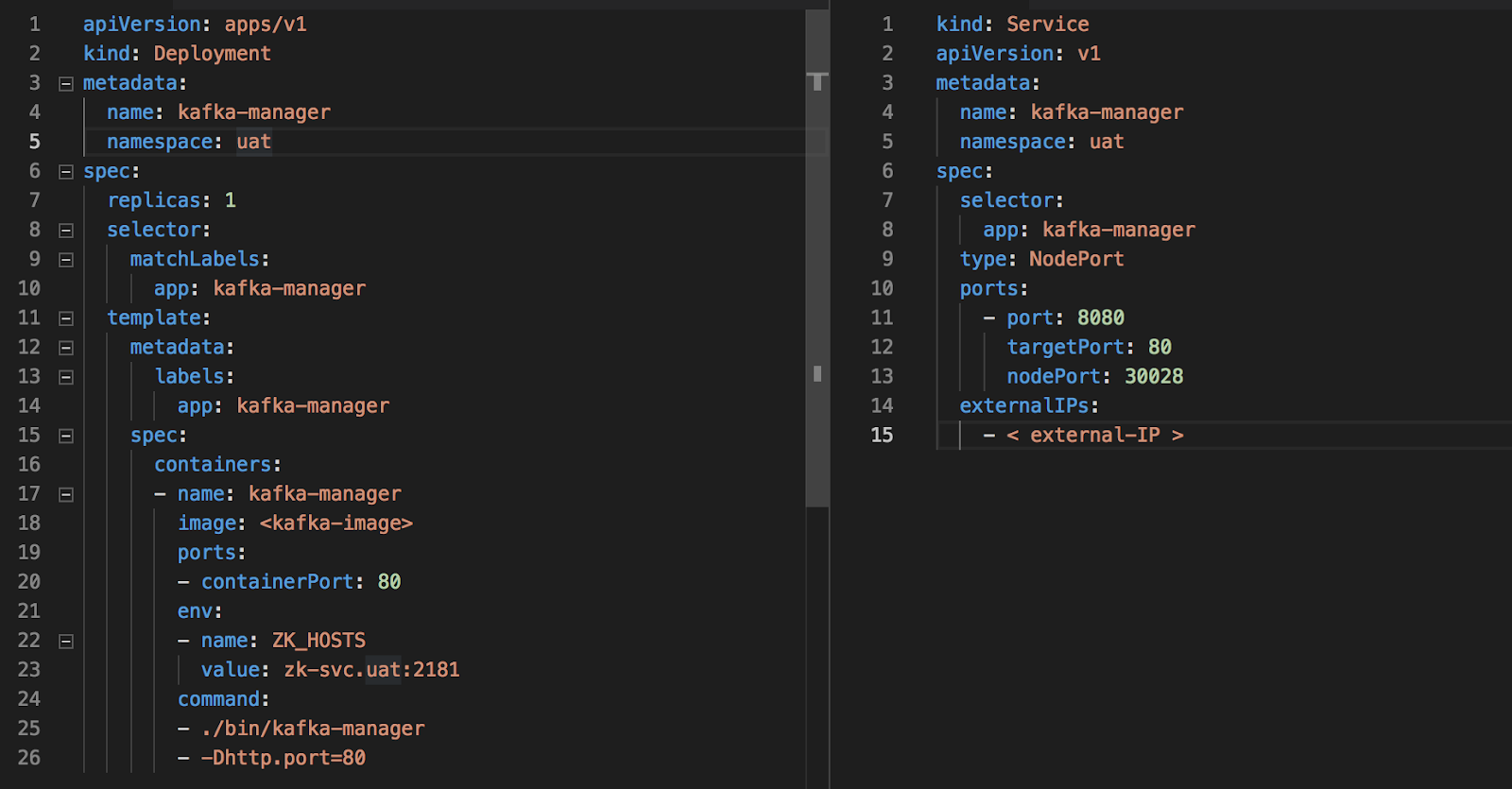
To deploy Kafka Manager on Kubernetes, we need to create deployment and service file as given below.
 
You can find these sample file at https://github.com/vishant07/kafka-manager

After deployment, we should able to access Kafka manager service via http://:8080

We have two files to Kafka-manager-service.yaml and kafka-manager.yaml to achieve above-mentioned setup. Let’s have a brief description of the different attributes used in these files. 

Deployment configuration file: 


namespace: provide a namespace to isolate application within Kubernetes.

replicas: number of containers to spun up.
image: provide the path of docker image to be used.
containerPorts: on which port you want to run your application.
environment: “ZK_HOSTS” provide the address of already running zookeeper.

Service configuration file:

This file contains the details to create Kafka manager service ok Kubernetes. For demo purpose, I have used the node port method to expose my service. 

As we are using Kubernetes for our underlying platform of deployment it is recommended not to use external IP to access any service. Either we should go with LoadBalancer or use ingress (recommended method) rather than exposing all microservices.  


To configure ingress, please take a note from Kubernetes Ingress.


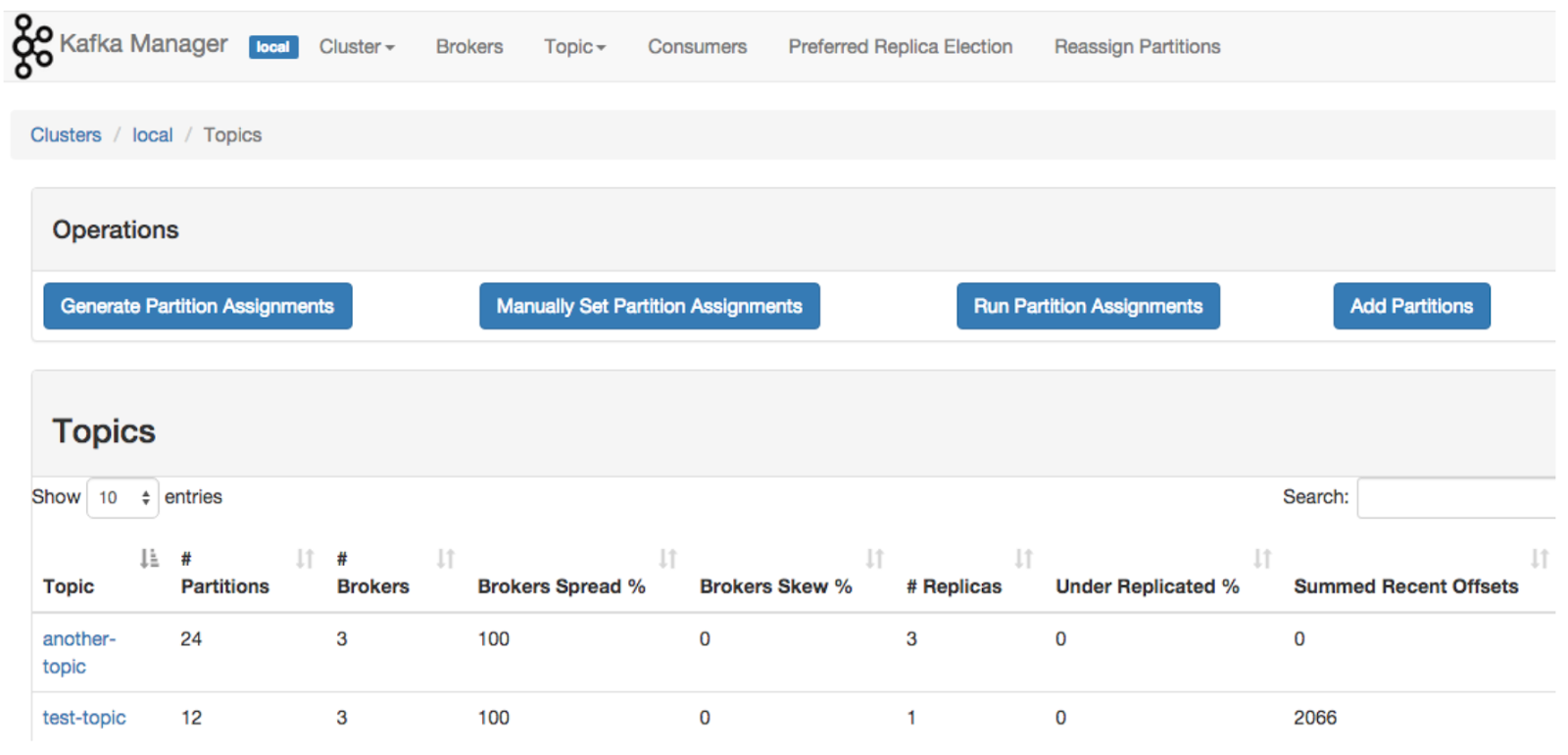
Once we are able to access Kafka manager we can see similar screens. 
 

Cluster Management

Topic List


Major Issues

 
To get broker level and topic level metrics we have to enable JMX polling.
 
So what we will generally do is to set the environment variable in the kubernetes manifest but somehow it is not working most of the times.


To resolve this you need to update JMX settings while creating your docker image as given as below.

vim /opt/kafka/bin/kafka-run-class.sh


if [ -z "$KAFKA_JMX_OPTS" ]; then
#KAFKA_JMX_OPTS="-Dcom.sun.management.jmxremote -Dcom.sun.management.jmxremote.authenticate=false  -Dcom.sun.management.jmxremote.ssl=false "

KAFKA_JMX_OPTS="-Dcom.sun.management.jmxremote=true -Dcom.sun.management.jmxremote.authenticate=false -Dcom.sun.management.jmxremote.ssl=false -Djava.rmi.server.hostname=$HOSTNAME -Djava.net.preferIPv4Stack=true"

fi
 

Conclusion

 
Deploying Kafka manager on Kubernetes encourages the easy setup, provides efficient manageability and all-time availability. Managing Kafka cluster over CLI becomes a tedious task and here Kafka manager helps to focus more on the use of Kafka rather than investing our time to configure and manage it.  It becomes useful at Enterprise Level, where system engineers can manage multiple Kafka clusters easily via UI.
Reference links:
Image: google image search
Documentation: https://github.com/yahoo/kafka-manager


Redis Best Practices and Performance Tuning for High-Speed Systems

In modern high traffic systems, Redis is one of the fastest in-memory data stores, but without proper tuning, even Redis can start showing performance bottlenecks.

The solution? Performance tuning and configuration optimization.

This guide covers the most important Redis performance tuning practices every DevOps engineer, SRE, or backend developer must follow.

One of the thing that I love about my organization is that you don’t have to do the same repetitive work, you will always get the chance to explore some new technologies. The same chance came across to me a few days back when one of our clients was facing issue with Redis.
They were using the Redis Cluster with Sentinel for which they were facing issue regarding performance, whenever the connection request was high the Redis Cluster was not able to bear the load.
Since they were using a decent configuration of the server in terms of CPU and Memory but the result was the same. So now what????
The Answer was to tune the performance. Continue reading “Redis Best Practices and Performance Tuning for High-Speed Systems”

How to resolve “Segmentation fault (core dumped)”

A segmentation fault, often called a segfault, is a notorious error that occurs when a program attempts to access memory beyond its permitted limits. For Ubuntu users, dealing with these errors can be particularly frustrating and complicated. In this detailed guide, we’ll delve into the nuances of segmentation faults, explore their causes, and discover practical ways to fix them. Whether you’re an experienced developer or just a Linux enthusiast, this article will provide you with the information you need to effectively handle segmentation faults.

The phrase “Core dumped” indicates that when the crash occurred, the operating system saved a full snapshot of the program’s memory (known as a “core dump”) to a file on the disk. This file is crucial for debugging because it contains the exact state of the program at the moment it failed, including details like the call stack, variable values, and memory mappings.

Why Does “Segmentation fault (core dumped)” Happen?

Here are some frequent culprits:

  • Crashing binaries when upgrading your system
  • Programs attempting to access invalid memory locations
  • Outdated or broken software packages
  • Cache corruption that can occur during installation or updates
  • Problems tied to specific software dependencies

[ Also Read: How To Debug a Bash Shell Script? ]

How to Fix Segmentation Fault in Ubuntu

Segmentation fault is when your system tries to access a page of memory that doesn’t exist. Core dumped means when a part of code tries to perform read and write operation on a read-only or free location. Segfaults are generally associated with the file named core and It generally happens during up-gradation.

While running some commands during the core-dump situation you may encounter with “Unable to open lock file” this is because the system is trying to capture a bit block which is not existing, This is due to the crashing of binaries of some specific programs.

You may do backtracking or debugging to resolve it but the solution is to repair the broken packages and we can do it by performing the below-mentioned steps:

Method 1: Fix Using the Command Line

Step 1: Remove the lock files present at different locations.

sudo rm -rf /var/lib/apt/lists/lock /var/cache/apt/archives/lock /var/lib/dpkg/lock and restart your system h.cdccdc 

Step 2: Remove repository cache.

sudo apt-get clean all

Step 3: Update and upgrade your repository cache.

sudo apt-get update && sudo apt-get upgrade

Step 4: Now upgrade your distribution, it will update your packages.

sudo apt-get dist-upgrade

Step 5: Find the broken packages and delete them forcefully.

sudo dpkg -l | grep ^..r | apt-get purge

Method 2: Fix Using Recovery Mode (GUI)

Step 1: Run Ubuntu in startup mode by pressing the Esc key after the restart. 

Step 2: Select Advanced options for Ubuntu

Step 3: Run Ubuntu in the recovery mode and you will be listed with many options.

Step 4: First select “Repair broken packages”

Step 5: Then select “Resume normal boot”

So, we have two methods of resolving segmentation fault: CLI and the GUI. Sometimes, it may also happen that the “apt” command is not working because of segfault, so our CLI method will not work, in that case also don’t worry as the GUI method gonna work for us always.

Prevention Tips

To prevent segmentation faults moving forward, keep these tips in mind:

  • Make it a habit to regularly update and upgrade your system packages.
  • Try not to interrupt installations or upgrades once they’ve started.
  • Periodically clean out the repository cache to keep things tidy.
  • Always use stable versions of your applications to minimize issues.

Final Thoughts

Facing a segmentation fault (core dump) can be quite frustrating, but it is not impossible. Using the CLI method or recovery mode, you can quickly fix the problem and get your system working properly again.

To minimize the chances of encountering this error in the future, make sure your system is always updated and take precautions when upgrading.

The closer you think you are, the less you’ll actually see

I hope you have seen the movie Now you see me, it has a famous quote The closer you think you are, the less you’ll actually see. Well, this blog is not about this movie but how I got stuck into an issue, because I was not paying attention and looking at the things closely and seeing less hence not able to resolve the issue.

There is a lot happening in today’s DevOps world. And HashiCorp has emerged out to be a big player in this game. Terraform is one of the open source tools to manage infrastructure as code. It plays well with most of the cloud provider. But with all these continuous improvements and enhancements there comes a possibility of issues as well. Below article is about such a scenario. And in case you have found yourself in the same trouble. You are lucky to reach the right page.
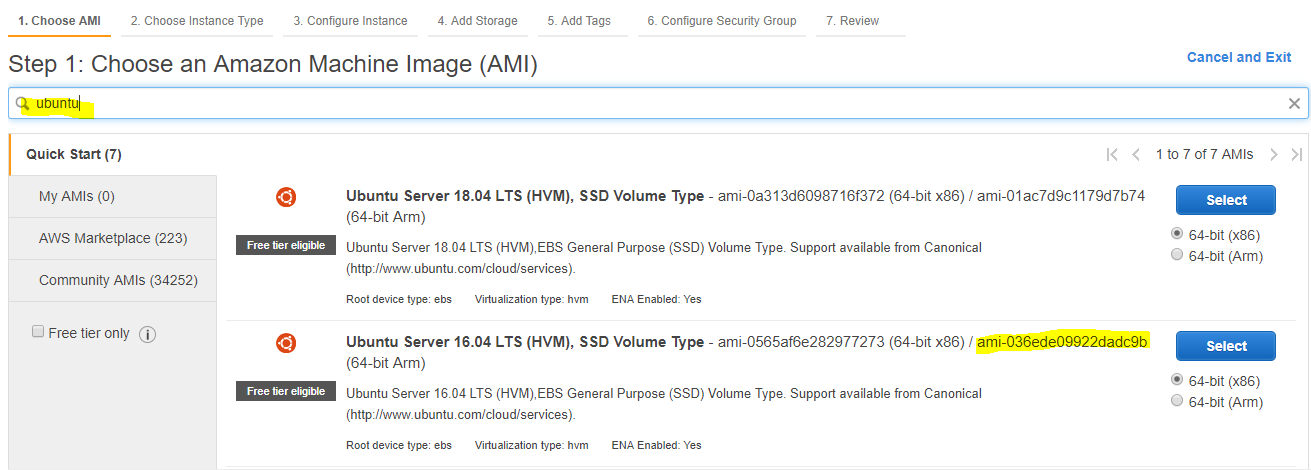
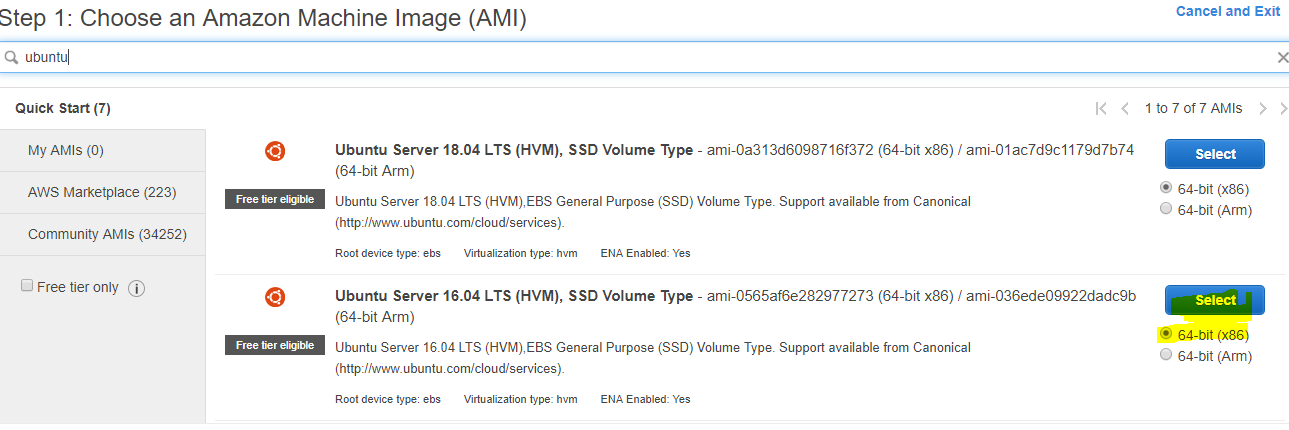
I was learning terraform and performing a simple task to launch an Ubuntu EC2 instance in us-east-1 region. For which I required the AMI Id, which I copied from the AWS console as shown in below screenshot.

Once I got the AMI Id, I tried to create the instance using terraform, below is the screenshot of the code

provider “aws” {
  region     = “us-east-1”
  access_key = “XXXXXXXXXXXXXXXXXX”
  secret_key = “XXXXXXXXXXXXXXXXXXX”
}
resource “aws_instance” “sandy” {
        ami = “ami-036ede09922dadc9b
        instance_type = “t2.micro”
        subnet_id = “subnet-0bf4261d26b8dc3fc”
}
I was expecting to see the magic of Terraform but what I got below ugly error.

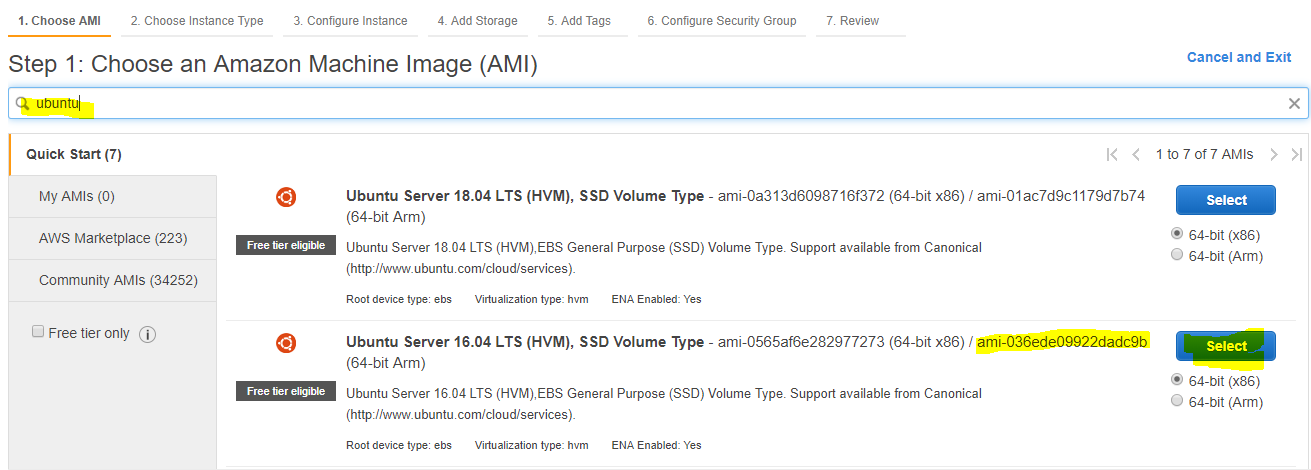
Terraform was not allowing to spin up the instance. I tried couple of things which didn’t work. As you can see the error message didn’t give too much information. Finally, I thought of giving it a try by  doing same task via AWS web console. I searched for the same ubuntu AMI and selected the image as shown below. Rest of the things, I kept to default. And well, this time it got launched.

And it confused me more. Through console, it was working fine but while using Terraform it says not allowed. After a lot of hair pulling finally, I found the culprit which is a perfect example of how overlooking small things can lead to blunder.

Culprit

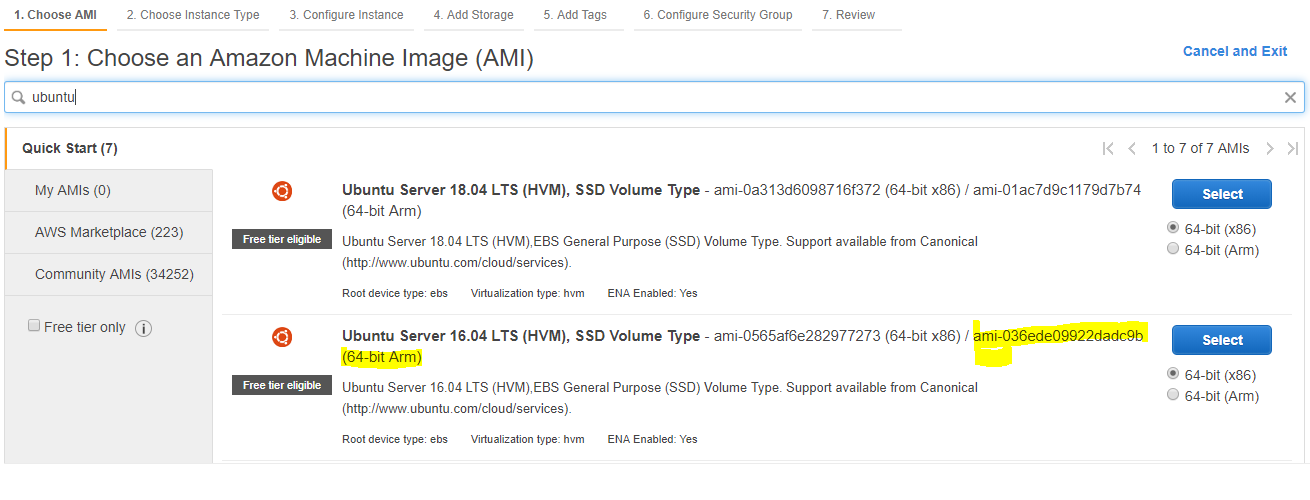
While copying the AMI ID from AWS console, I had copied the 64-bit (ARM) AMI ID. Please look carefully, the below screenshot

But while creating it through console I was selecting the default configuration which by is 64-bit(x86). Look at the below screenshot.

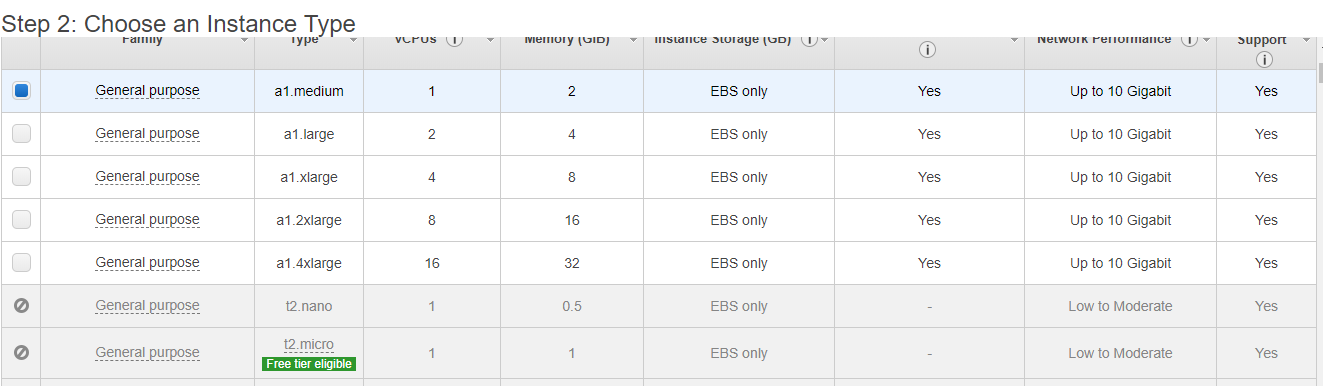
To explain it further, I tried to launch the VM with 64-bit (ARM) manually. And while selecting the AMI, I selected the 64-bit (ARM).

And here is the culprit. 64-bit(ARM) only supports a1 instance type

Conclusion

While launching the instance with the terraform, I tried using 64-bit (ARM) AMI ID mistakenly, primarily because for same AMI there are 2 AMI IDs and it is not very visible to eyes unless you pay special attention.

So folks, next time choosing an AMI ID keep it in mind what type of AMI you are selecting. It will save you a lot of time.